How to Connect iPhone to Hisense Roku TV Without Wi-Fi
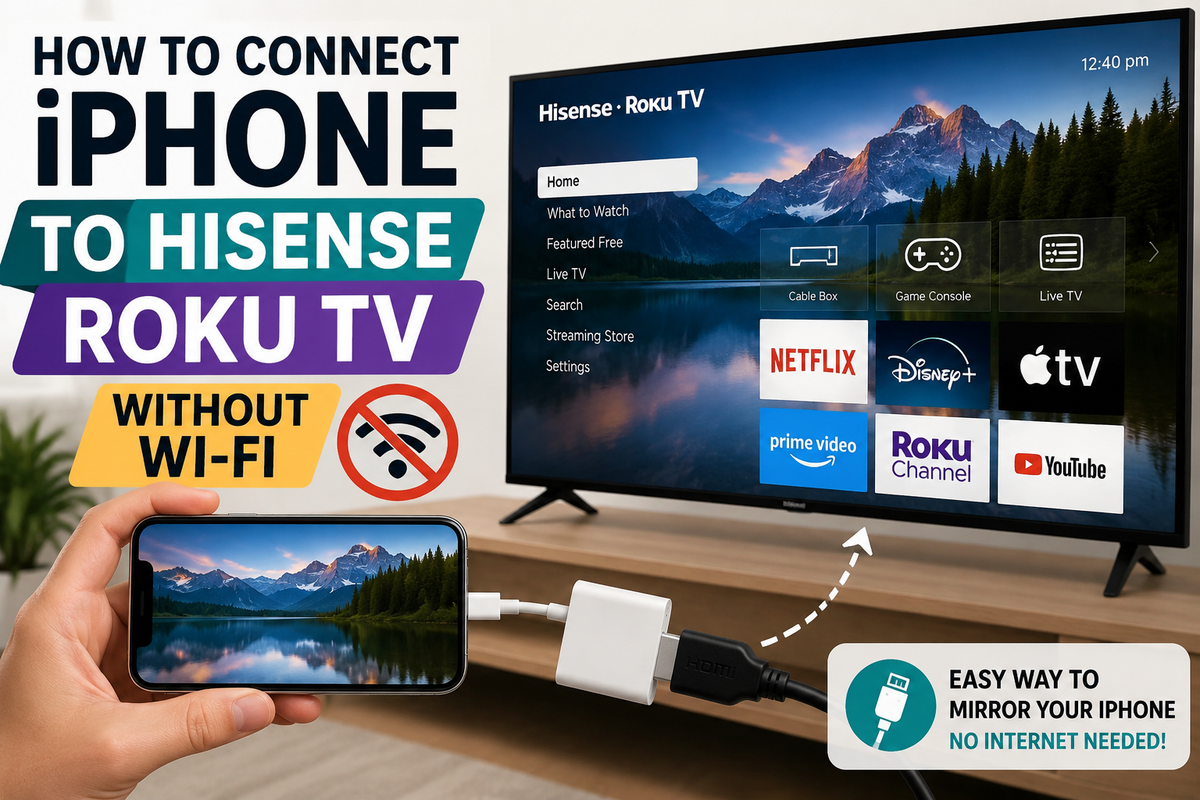
Have you ever wanted to display photos, videos, or apps from your iPhone on your Hisense Roku TV, only to realize that there isn't a Wi-Fi connection available? Fortunately, there are several ways to connect an iPhone to a Hisense Roku TV without using a wireless network.
In this guide, you'll learn how to connect your devices using an HDMI adapter, Apple AirPlay alternatives, and other practical solutions.
Can You Connect an iPhone to a Hisense Roku TV Without Wi-Fi?
Yes, you can. While many screen-sharing features depend on a Wi-Fi network, there are still a few reliable methods that don't require internet access.
The easiest options include:
- Using a Lightning-to-HDMI adapter
- Connecting through Apple Lightning Digital AV Adapter
- Creating a personal hotspot
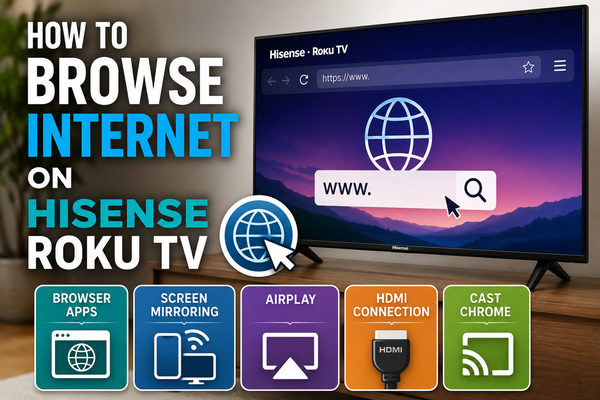
- Using a wired HDMI connection
Method 1: Use a Lightning-to-HDMI Adapter
This is the most reliable way to connect an iPhone to a Hisense Roku TV without Wi-Fi.
What You'll Need
- An iPhone
- An Apple Lightning Digital AV Adapter
- An HDMI cable
- A Hisense Roku TV
Follow These Steps
- Connect the Lightning adapter to your iPhone.
- Plug one end of the HDMI cable into the adapter.
- Connect the other end of the HDMI cable to an available HDMI port on your Hisense Roku TV.
- Turn on the TV.
- Press the Home button on the Roku remote.
- Select Settings if necessary.
- Choose the HDMI input where the cable is connected.
Your iPhone's screen should immediately appear on the TV.
Advantages of This Method
- No Wi-Fi required.
- Stable connection.
- Supports videos, photos, games, and presentations.
- Minimal lag.
Method 2: Use Your iPhone's Personal Hotspot
If your TV supports wireless features but no router is available, you can create a temporary network using your iPhone.
Enable a Personal Hotspot
- Open Settings on your iPhone.
- Tap Personal Hotspot.
- Turn on Allow Others to Join.
Connect Your Roku TV
- Open Settings on the Hisense Roku TV.
- Select Network.
- Choose Set Up Connection.
- Select Wireless.
- Connect the TV to your iPhone's hotspot.
Once both devices are connected to the same hotspot network, you may be able to use AirPlay.
Note: Some mobile carriers limit hotspot functionality.
Method 3: Play Content Through a USB Device
If your goal is simply to view photos or videos, you can transfer files from your iPhone to a computer and copy them to a USB drive.
Steps
- Transfer the media files from your iPhone to a computer.
- Copy the files to a USB flash drive.
- Insert the USB drive into your Hisense Roku TV.
- Open Roku Media Player.
- Select and play your content.
This isn't true screen mirroring, but it's useful for watching videos without a network connection.
Why AirPlay Doesn't Usually Work Without Wi-Fi
Apple AirPlay requires both devices to be connected to the same network. Without a shared connection, your iPhone won't be able to detect the Hisense Roku TV.
Although some newer Apple devices support peer-to-peer AirPlay, Roku TVs generally still require a network connection for AirPlay to function properly.
Troubleshooting Tips
If your iPhone doesn't connect to your Hisense Roku TV, try these solutions:
- Verify that the HDMI cable is firmly connected.
- Switch to a different HDMI port.
- Restart both devices.
- Update your Roku TV software.
- Use an original Apple Lightning adapter instead of a third-party accessory.
Final Thoughts
The easiest way to connect an iPhone to a Hisense Roku TV without Wi-Fi is by using a Lightning-to-HDMI adapter. It doesn't require an internet connection, works instantly, and provides the most stable experience.
If you don't have an HDMI adapter, creating a personal hotspot may also work, provided your TV supports AirPlay and both devices can connect to the same network.