How to Browse the Internet on a Hisense Roku TV
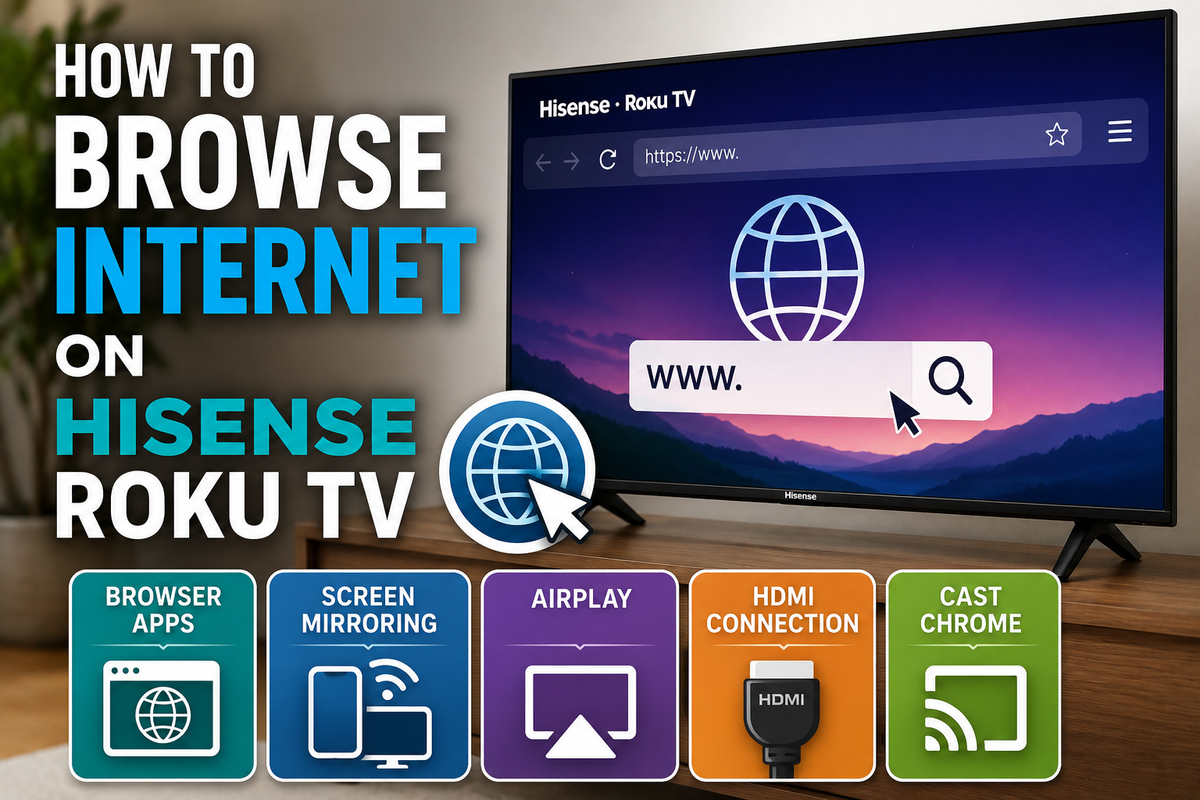
Can You Browse the Internet on a Hisense Roku TV?
Many new Hisense Roku TV owners are surprised to discover that Roku TVs don't include a traditional web browser. Unlike some smart TV platforms, Roku doesn't offer a built-in browser such as Google Chrome, Mozilla Firefox, or Microsoft Edge.
However, that doesn't mean you can't access the internet on your TV. There are several alternative methods that allow you to view websites, stream online content, and even mirror your computer or smartphone screen.
In this guide, we'll explain the easiest ways to browse the internet on a Hisense Roku TV.
Method 1: Use a Third-Party Browser App
Although Roku doesn't provide an official web browser, several third-party applications are available in the Roku Channel Store.
Popular options include:
- Web Browser X
- POPRISM Web Browser
To install a browser:
- Press the Home button on your Roku remote.
- Open Streaming Channels.
- Select Search Channels.
- Search for a browser application.
- Select the application.
- Choose Add Channel.
- Open the browser after installation.
Keep in mind that browser functionality on Roku TVs is limited. Many modern websites may not display correctly.
Method 2: Mirror Your Smartphone Screen
Screen mirroring is one of the easiest ways to browse the web on a Hisense Roku TV.
Android devices
- Connect your phone and TV to the same Wi-Fi network.
- Open Settings on your smartphone.
- Select Connected Devices.
- Tap Cast, Smart View, or Screen Mirroring.
- Select your Hisense Roku TV.
Once connected, anything displayed on your phone, including web pages, will appear on the television.
Method 3: Use Apple AirPlay
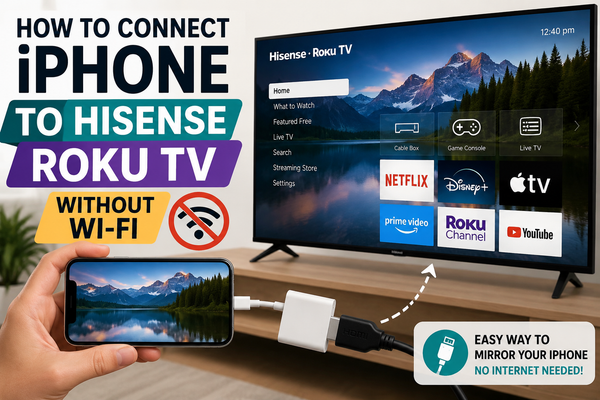
If you have an iPhone, you can use AirPlay to display websites on your TV.
To enable AirPlay:
- Press Home on the Roku remote.
- Open Settings.
- Select Apple AirPlay and HomeKit.
- Enable AirPlay.
To mirror your iPhone:
- Open Control Center.
- Tap Screen Mirroring.
- Select your Hisense Roku TV.
- Open Safari and browse the internet.
Method 4: Connect a Computer with an HDMI Cable
An HDMI connection provides the best browsing experience.
Follow these steps:
- Connect your computer to the TV using an HDMI cable.
- Select the correct HDMI input.
- Open any web browser on your computer.
- Browse the internet normally.
This method supports:
- Google Chrome
- Microsoft Edge
- Mozilla Firefox
- Opera
You'll also be able to watch videos, use social media, and access websites that may not work in Roku browser apps.
Method 5: Cast Chrome from a Computer
You can also cast individual browser tabs from your computer.
To cast Chrome:
- Open Google Chrome.
- Click the three-dot menu.
- Select Cast.
- Choose your Roku TV.
- Select Cast Tab or Cast Screen.
This method allows you to display websites wirelessly without using an HDMI cable.
Common Problems and Solutions
The browser won't open
- Restart the TV.
- Update Roku software.
- Reinstall the browser application.
Screen mirroring isn't working
- Make sure both devices are connected to the same Wi-Fi network.
- Restart both devices.
- Verify that screen mirroring is enabled in Roku settings.
Websites load slowly
Roku browser applications have limited hardware resources. For a better experience, use screen mirroring or an HDMI connection.
Frequently Asked Questions
Does Roku have Google Chrome?
No. Google Chrome isn't officially available on Roku TVs.
Can I install Firefox on a Hisense Roku TV?
No. Firefox isn't available in the Roku Channel Store.
What's the best way to browse the web on a Hisense Roku TV?
Screen mirroring from a smartphone or connecting a computer with an HDMI cable usually provides the best experience.
Final Thoughts
Hisense Roku TVs aren't designed for traditional web browsing. While browser applications exist, they offer limited functionality.
If you need a full browsing experience, screen mirroring or connecting a computer remains the most practical solution.