How to Connect Bluetooth Headphones to a Hisense Roku TV
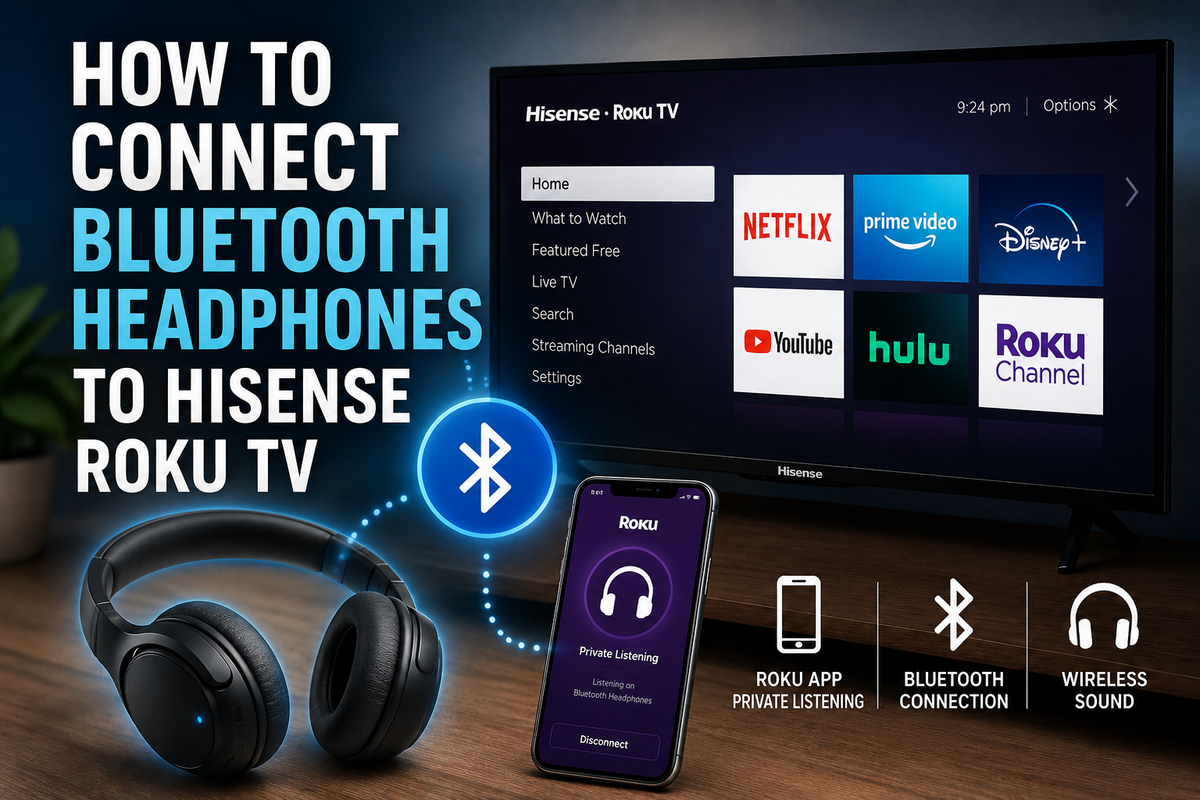
Wireless headphones are a convenient way to enjoy movies, TV shows, and games without disturbing other people. However, connecting Bluetooth headphones to a Hisense Roku TV isn't always as straightforward as pairing them directly with the television.
This guide explains all the available methods for connecting Bluetooth headphones to your Hisense Roku TV.
Can a Hisense Roku TV Connect Directly to Bluetooth Headphones?
Most Hisense Roku TV models don't support direct Bluetooth audio pairing through the TV's settings.
Instead, Roku uses a feature called Private Listening, which sends the TV's audio to a smartphone and then to your headphones.
If your TV model supports direct Bluetooth pairing, you'll find the option in the settings menu. Otherwise, you'll need to use one of the alternative methods below.
Method 1: Use the Roku Mobile App (Recommended)
The easiest way to connect Bluetooth headphones is through the Roku mobile app.
Step 1: Install the Roku App
Download and install the Roku app on your smartphone.
Step 2: Connect Your Phone and TV to the Same Wi-Fi Network
Make sure both devices are connected to the same wireless network.
Step 3: Pair Your Bluetooth Headphones With Your Phone
Connect your headphones to your smartphone as you normally would.
Step 4: Open the Roku App
- Launch the Roku app.
- Tap Devices.
- Select your Hisense Roku TV.
- Tap Remote.
Step 5: Enable Private Listening
- Tap the headphones icon.
- Wait a few seconds for the audio to switch.
The TV's sound will now play through your Bluetooth headphones.
Method 2: Check for Native Bluetooth Support
Some newer Hisense Roku TV models may include built-in Bluetooth support.
To check:
- Press Home.
- Open Settings.
- Select Remotes & Devices.
- Look for a Bluetooth or Wireless Speakers option.
If you see a Bluetooth menu:
- Put your headphones into pairing mode.
- Select Add Device.
- Choose your headphones from the list.
- Complete the pairing process.
If you don't see a Bluetooth option, your TV doesn't support direct Bluetooth connections.
Method 3: Use a Bluetooth Transmitter
A Bluetooth transmitter can add wireless audio support to almost any television.
Connect a Bluetooth Transmitter
- Plug the transmitter into the TV's audio output.
- Turn on the transmitter.
- Put your headphones into pairing mode.
- Press the pairing button on the transmitter.
- Wait for both devices to connect.
Bluetooth transmitters usually connect through:
- A 3.5 mm headphone jack
- An optical audio port
- A USB port
Why Won't My Headphones Connect?
If you're having trouble connecting your headphones, try these solutions:
Restart Your Devices
Turn off and restart:
- The TV
- Your smartphone
- Your Bluetooth headphones
Check the Wi-Fi Connection
The Roku app requires both devices to be connected to the same network.
Remove Existing Bluetooth Connections
Your headphones may already be connected to another device.
Disconnect them from:
- Tablets
- Laptops
- Other smartphones
Update the Roku Software
To update your TV:
- Open Settings.
- Select System.
- Choose System Update.
- Select Check Now.
Final Thoughts
The easiest way to connect Bluetooth headphones to a Hisense Roku TV is by using the Roku mobile app and enabling Private Listening. If your TV doesn't support Bluetooth, a Bluetooth transmitter is an excellent alternative that provides a reliable wireless connection.