Why Does My Hisense Roku TV Keep Restarting?
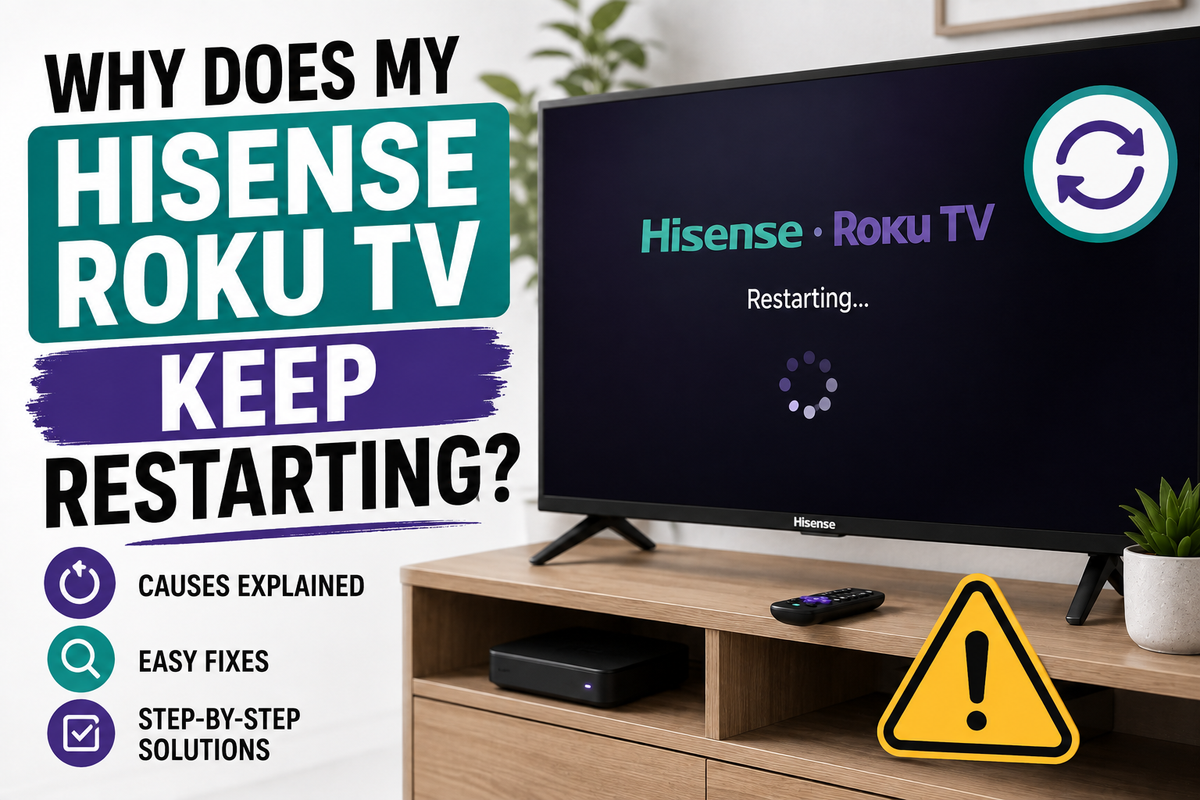
A Hisense Roku TV that keeps restarting on its own — whether it flashes the logo and loops endlessly, or turns off and back on every few minutes even after fully booting — is one of the more frustrating smart TV problems, mostly because the cause isn't always obvious. The good news is that the vast majority of these cases come down to software or power issues that you can fix yourself, without a technician visit. Here's how to figure out what's actually going wrong and how to stop it.
The Most Common Causes
1. Corrupted cache or software glitch. Like any smart TV running a full operating system, Roku TV accumulates temporary data as apps run. Over time, that cache can get corrupted, especially after an interrupted update or an app crash, and the system can get stuck trying to reload itself — creating a restart loop.
2. A failed or interrupted firmware update. If the TV lost power or Wi-Fi mid-update, the system files can end up incomplete. This often shows up as the TV restarting repeatedly right after an update was pushed.
3. Power supply issues. Voltage fluctuations, a faulty outlet, or a failing power strip can cause the TV to cut out and restart. This is also one of the more common causes when the TV won't get past the logo screen at all.
4. Overheating. If the TV's vents are blocked — mounted flush against a wall, stuffed into a cabinet with no airflow — internal components can overheat and trigger an automatic safety restart.
5. A connected HDMI or USB device causing conflicts. Soundbars, game consoles, and streaming sticks that use HDMI-CEC (the feature that lets devices control each other) can sometimes send conflicting power signals that cause the TV to reboot. A malfunctioning USB drive plugged into the TV can have the same effect.
6. Hardware failure. Less common, but worth ruling out: failing capacitors on the main board or a damaged power board can cause a reboot loop that no software fix will resolve. This is more likely if the TV is several years old or if the restarts started after a power surge.
Quick Diagnostic Tip
Before trying fixes, pay attention to when the TV restarts:
- If you can briefly reach the settings menu before it reboots, or it seems to happen mostly while running specific apps, you're almost certainly dealing with a software issue.
- If the TV restarts the instant you power it on and never gets past the logo, that leans more toward a power or hardware problem.
Step 1: A True Power Cycle
This resolves the majority of restart loops caused by cache corruption or a stuck update.
- Unplug the TV directly from the wall outlet — not just a power strip or surge protector.
- Press and hold the TV's physical power button for about 20–30 seconds while it's unplugged. This drains any residual power held in the capacitors.
- Wait at least 60 seconds before plugging it back in.
- Turn the TV on and see if it boots normally.
If the loop continues, unplug it again and this time wait a full 10 minutes before reconnecting. Several users have found that the shorter 60-second wait isn't always enough to fully clear a stuck state, while the longer wait resolves it.
Step 2: Remove Connected Devices
- Unplug every HDMI and USB device from the TV — soundbars, consoles, streaming sticks, external drives.
- Power the TV back on and let it sit for a few minutes to see if the restarts stop.
- If it stays stable, reconnect devices one at a time, waiting a few minutes between each, to identify which one is triggering the issue.
- If a specific device is the culprit, try disabling HDMI-CEC in the TV's settings (usually under Settings → System → Control other devices (CEC)) before reconnecting it — this often resolves conflicts without giving up the device entirely.
Step 3: Roku-Specific Cache Clear
Roku TVs have a lesser-known button sequence that clears cached data more thoroughly than a standard power cycle. With the remote pointed at the TV, press:
Home (5 times) → Up (1 time) → Rewind (2 times) → Fast Forward (2 times)
This triggers a hidden diagnostic menu and clears cached app data that a simple restart can miss.
Step 4: Check for and Complete a Firmware Update
- If you can reach the menu, go to Settings → System → System update → Check now.
- If a stuck update is the cause, letting it fully download and install (ideally over Ethernet rather than Wi-Fi, for a more stable connection) can resolve the loop on its own.
- If the TV won't stay on long enough to check for an update through the menu, try the power cycle in Step 1 first to get it stable enough to reach settings.
Step 5: Factory Reset
If cache clearing and update checks don't help, a factory reset clears out any corrupted system data that's been causing the loop.
- Locate the physical Reset button on the TV — usually on the back or bottom edge, sometimes recessed and requiring a pin to press.
- Press and hold it for about 15–20 seconds until the screen goes blank and the TV restarts into the setup screen.
- If the TV is too unstable to reach that point, you can also try catching it mid-reboot: as soon as it starts a restart cycle, quickly press and hold the reset button until it fully powers off, then let go and let it boot into setup.
- Once it reaches the initial setup screen, go through the setup process again — network connection, sign-in, and app downloads will need to be redone.
Keep in mind a factory reset erases installed apps, saved logins, and custom settings, so this is worth trying only after the steps above haven't worked.
Step 6: Check for Overheating
- Make sure the TV has a few inches of clearance around the back and top, especially if it's wall-mounted or inside an enclosed cabinet.
- Feel the back panel — if it's unusually hot to the touch, poor airflow may be a factor.
- Give the TV a break with the power off for 30–60 minutes in a cooler, more open space, then test again.
When It's Likely a Hardware Problem
If none of the software fixes above stop the restarts — especially if the issue appeared suddenly after a power surge or storm, or the TV is several years old — the cause may be a failing component on the main board or power board, such as swollen or leaking capacitors. These aren't something most people can safely diagnose or repair without experience opening electronics, and attempting it can void any remaining warranty. At that point, it's worth checking whether the TV is still under Hisense's warranty before deciding whether a repair is cost-effective compared to replacement.
Bottom Line
Most Hisense Roku TV restart loops trace back to a stuck cache, an interrupted firmware update, or a connected device causing a power conflict — all fixable with a proper power cycle, disconnecting external devices, or a factory reset. If the TV won't stabilize after trying all of that, and especially if it started right after a power surge, it's time to consider a hardware issue rather than continuing to chase software fixes.