How Do I Lock Apps on My Hisense Smart TV?
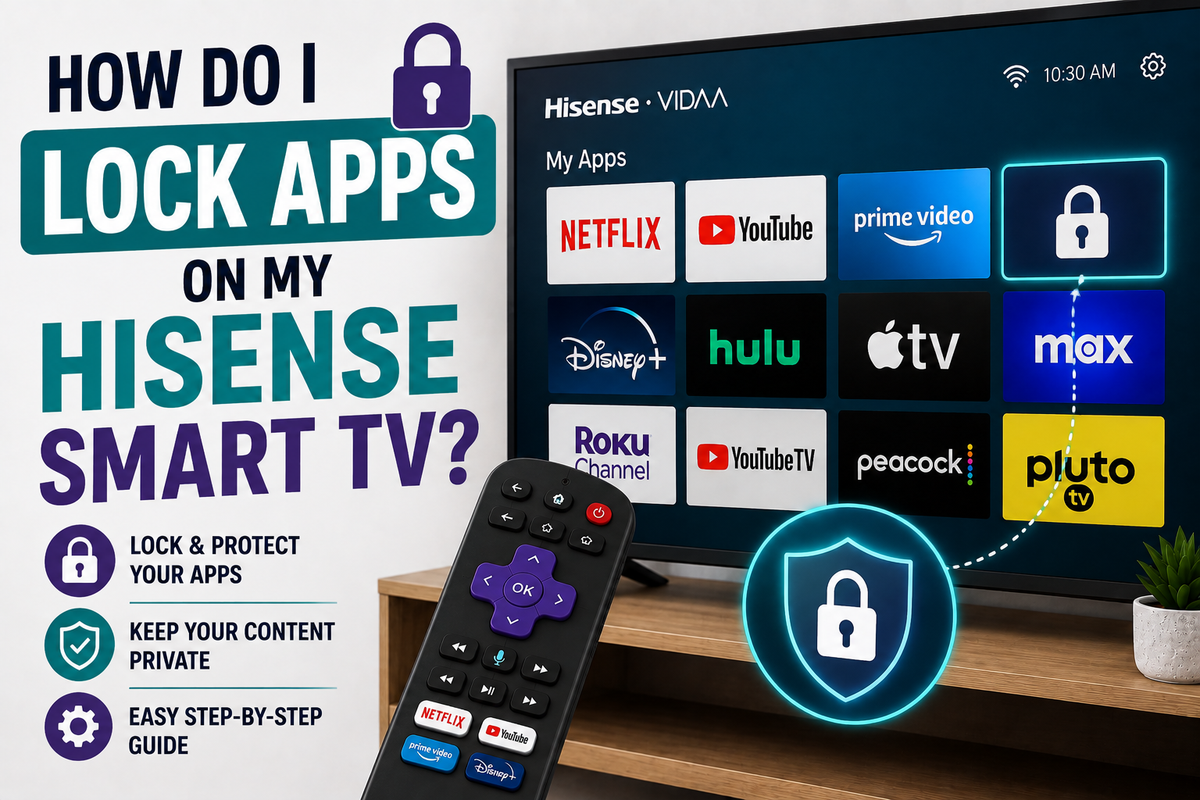
Locking individual apps on a Hisense smart TV is handled through the Parental Controls menu, and every Hisense operates through one of several possible platforms — Roku TV, VIDAA, Google TV/Android TV, or Fire TV Edition — so the exact steps depend on which one your TV runs. The good news is all of them support app-level locking with a PIN; the menu names and navigation just differ slightly. Here's how to set it up on each.
First, Check Which Platform Your TV Runs
Press the Home button on your remote. The interface that appears tells you what you're working with:
- A purple, tile-based home screen with a "Roku Channel" section → Roku TV
- A row-based interface with a red or orange accent and channel-style tiles → VIDAA
- A Google TV-style layout with a search bar at top and personalized recommendations → Google TV / Android TV
- An interface centered around Amazon content and a orange/black theme → Fire TV Edition
On Hisense Roku TV
- From the Home screen, go to Settings.
- Select Parental controls.
- Enter a 4-digit PIN when prompted, then confirm it.
- Once the PIN is set, you'll be able to restrict access to apps, content ratings, and the Roku Channel and Movie Store.
- To lock a specific app, look under the Parental Controls menu for an app or channel restriction option, select the app, and enable the lock.
From then on, opening that app will require entering the PIN you set.
On Hisense VIDAA TV
- Open Settings from the home screen or press the gear icon on the remote.
- Navigate to System.
- Select Parental Control.
- You'll be prompted to create a System PIN the first time — write it down somewhere safe.
- Once the PIN is set, go back into Parental Control and toggle Locks on.
- With locks enabled, additional options appear, including App Restriction. Select it and choose which apps require the PIN to open.
VIDAA's Parental Control menu also lets you block by channel, program rating, input source, and set a specific block time — useful if you want restrictions to apply only during certain hours rather than all day.
On Hisense Google TV / Android TV
- From the home screen, select your Profile icon in the top corner.
- Go to Settings.
- Select System, then Parental controls.
- Set a 4-digit PIN and confirm it by entering it a second time.
- Once enabled, you can lock individual apps and channels from within this menu — select the app you want restricted and apply the lock.
Google TV models also support setting up a separate kids' profile, which lets you control which apps are visible at all (rather than just PIN-locked) and set screen time limits — worth considering if the TV is shared with young children regularly.
On Hisense Fire TV Edition
- Go to Settings.
- Select Preferences.
- Select Parental Controls.
- Enter a PIN to enable the feature.
- From there, you can restrict specific apps, purchases, and content ratings the same way you would on any Fire TV device.
A Note on the Official Remote App
If you're used to controlling your TV through the Hisense or Roku mobile remote app, keep in mind that parental controls generally can't be configured from the app itself — you'll need the physical remote (or an on-screen alternative) to access the Settings menu directly on the TV.
If the Parental Controls Option Is Missing or Greyed Out
This is a fairly common hiccup, and it's usually a software glitch rather than something wrong with your specific TV:
- Restart the TV — unplug it for about 30 seconds, then power it back on.
- Check for a pending system update under Settings → System → System update, since parental control bugs are sometimes fixed in firmware updates.
- If the option still won't appear, try navigating to it fresh after the restart rather than through a saved menu shortcut.
If You Forget Your PIN
Each platform handles this differently:
- VIDAA and Roku TV: most models let you reset the PIN through the Parental Control settings using a "Reset to default" option, though some older sets may require contacting Hisense support directly.
- Google TV/Android TV: if the PIN is tied to a Google account, you can often reset it through your Google account recovery process rather than resetting the whole TV.
- As a last resort on any platform, a full factory reset will clear the PIN along with all other custom settings — only worth doing if the standard reset option genuinely isn't available.
Bottom Line
App locking on a Hisense smart TV always lives inside a Parental Controls menu, reached through Settings → System (or Preferences) → Parental Controls, regardless of platform. Set a PIN once, then use the app or channel restriction option within that same menu to lock specific apps individually — just be sure to write the PIN down somewhere safe, since resetting it varies in difficulty depending on which version of Hisense's smart TV software you're running.