How to Find the MAC Address on a Hisense TV
A MAC address is a unique identifier assigned to your TV’s network hardware. You may need it when connecting your Hisense TV to a Wi-Fi network, setting up parental controls, configuring a router, registering the device, or troubleshooting network problems.
The exact location of the MAC address depends on which operating system your Hisense TV uses. Hisense televisions can run different platforms, including Roku TV, Google TV, Android TV, Fire TV, and VIDAA.
This guide explains how to find the MAC address on each of these systems.
What Does a MAC Address Look Like?
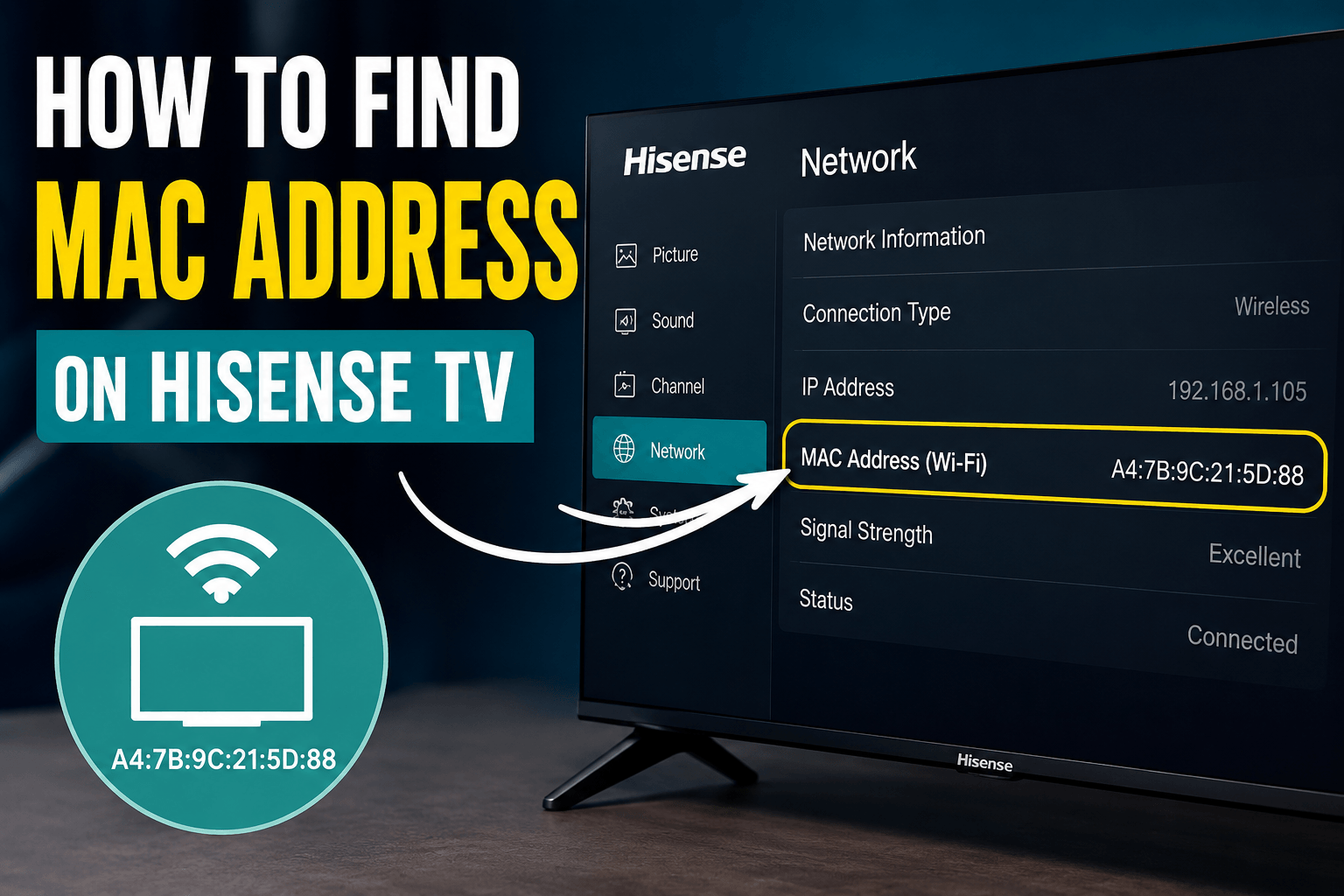
A MAC address is usually displayed as a sequence of 12 hexadecimal characters divided into six pairs. For example:
A4:7B:9C:21:5D:88
Your TV may display the address with colons, hyphens, or without separators. The format can vary slightly depending on the operating system.
Keep in mind that a television may have separate MAC addresses for Wi-Fi and Ethernet. If you are connecting the TV wirelessly, use the Wi-Fi MAC address.
How to Find the MAC Address on a Hisense Roku TV
If your Hisense television uses Roku OS, you can usually find its network information through the Settings menu.
Method 1: From the Network Settings
- Turn on your Hisense Roku TV.
- Press the Home button on the Roku remote.
- Select Settings.
- Open Network.
- Select About.
- Look for the Wireless MAC Address or other network information.
The MAC address should be displayed on this screen.
If your TV is connected through an Ethernet cable, look for the Ethernet-related MAC address instead.
Method 2: Check the Network Connection
On some Roku TV versions, the network information can be accessed by going to:
Home → Settings → Network → About
This screen can also show the TV's IP address, network connection type, signal information, and other details.
How to Find the MAC Address on a Hisense Google TV
Newer Hisense televisions may use Google TV. The menu names can vary slightly between models and software versions.
Try these steps:
- Press the Home button on the remote.
- Select your profile or open Settings.
- Go to Settings.
- Select Network & Internet.
- Choose the connected Wi-Fi network.
- Open the network details.
- Look for MAC address, Device MAC address, or Wi-Fi MAC address.
On some models, you may instead find the information under:
Settings → System → About → Status
If you do not see a MAC address under the Wi-Fi network, check the TV's About or Status section.
How to Find the MAC Address on a Hisense Android TV
Hisense Android TV models can have slightly different menu layouts depending on the Android TV version.
A common method is:
- Press Home on the remote.
- Open Settings.
- Select Device Preferences.
- Choose About.
- Open Status.
- Find the MAC address or Wi-Fi MAC address.
On some older Android TV models, you may find it under:
Settings → Network → Network Information
or:
Settings → About → Status
If your television has both Wi-Fi and Ethernet connectivity, you may see more than one network address.
How to Find the MAC Address on a Hisense VIDAA TV
Many Hisense smart TVs use the company's VIDAA operating system. The exact menu names depend on the VIDAA version.
Try the following:
- Press the Home button.
- Open Settings.
- Select Network.
- Open Network Information, Network Status, or a similar option.
- Look for the MAC Address or Wireless MAC Address.
On some VIDAA models, network information may be located under:
Settings → Support → System Information
If the MAC address is not visible in the Network menu, check the system information section.
How to Find the MAC Address on a Hisense Fire TV
Some Hisense models use Amazon Fire TV software. If your television has Fire TV built in, you can normally find the MAC address through the network settings.
- Press the Home button.
- Open Settings.
- Select My Fire TV or Network, depending on your software version.
- Open About or select your connected Wi-Fi network.
- Look for the Wi-Fi MAC Address.
Another possible path is:
Settings → Network → See All Networks → About
The exact menu structure may differ between Fire TV versions.
How to Find the MAC Address on an Older Hisense Smart TV
Older Hisense smart TVs may not use Roku, Google TV, Android TV, VIDAA, or Fire TV. Their menus can therefore look quite different.
Start by opening:
Settings → Network
Then look for options such as:
- Network Information
- Network Status
- Connection Information
- Wireless Information
- System Information
The MAC address may be listed alongside the TV's IP address and other network details.
If you cannot find it in the Network menu, check:
Settings → Support → System Information
or:
Settings → About
The exact location depends on the model and software version.
Wi-Fi MAC Address vs. Ethernet MAC Address
If your Hisense TV supports both Wi-Fi and wired Ethernet, it can have separate network hardware identifiers.
For example:
- Wi-Fi MAC Address — used when the TV connects to a wireless router.
- Ethernet MAC Address — used when the TV connects to the router with a network cable.
If your router asks you to enter the MAC address for a Wi-Fi connection, make sure you provide the Wi-Fi MAC address, not the Ethernet address.
What If the MAC Address Is Not Shown?
If you cannot find the MAC address, first make sure you are looking in the correct section for your TV's operating system.
You can also try these steps:
- Restart the TV.
- Open the Network settings again.
- Connect the TV to Wi-Fi.
- Check the About, Status, or Network Information section.
- Look for a software update.
- Check the TV's model-specific user manual.
The menu names can change after a software update, so the instructions for one Hisense model may not exactly match another.
Can You Find the MAC Address Without Connecting to Wi-Fi?
Usually, yes. The MAC address belongs to the TV's network hardware, so it may be displayed even when the television is not currently connected to a network.
However, some TV interfaces only show complete network information after you open the network settings or select a Wi-Fi connection.
If you are trying to connect the TV to a router that uses MAC address filtering, you may need to locate the Wi-Fi MAC address before completing the connection.
Final Thoughts
The easiest way to find a MAC address on a Hisense TV is to open the network or system information section. The exact path depends primarily on the operating system.
For a quick reference:
| Hisense TV OS | Typical location |
|---|---|
| Roku TV | Settings → Network → About |
| Google TV | Settings → Network & Internet → Network details |
| Android TV | Settings → Device Preferences → About → Status |
| VIDAA | Settings → Network → Network Information |
| Fire TV | Settings → Network or About |
| Older Smart TV | Settings → Network / Support / System Information |
If your Hisense TV uses a different menu layout, check the model number and software version first. This will help you identify the correct instructions without changing any network settings unnecessarily.