Where Is the IP Address on a Hisense Roku TV?
Whether you're setting up a VPN, troubleshooting a connection drop, casting from your phone, or just trying to add the TV to your router's device list, you'll eventually need to know your Hisense Roku TV's IP address. It's tucked away in the network settings rather than sitting on some obvious home screen, so here's exactly where to find it — plus a few backup methods if your remote isn't cooperating.
Method 1: Through the TV's Settings Menu (most reliable)
This works as long as the TV is already connected to Wi-Fi or Ethernet.
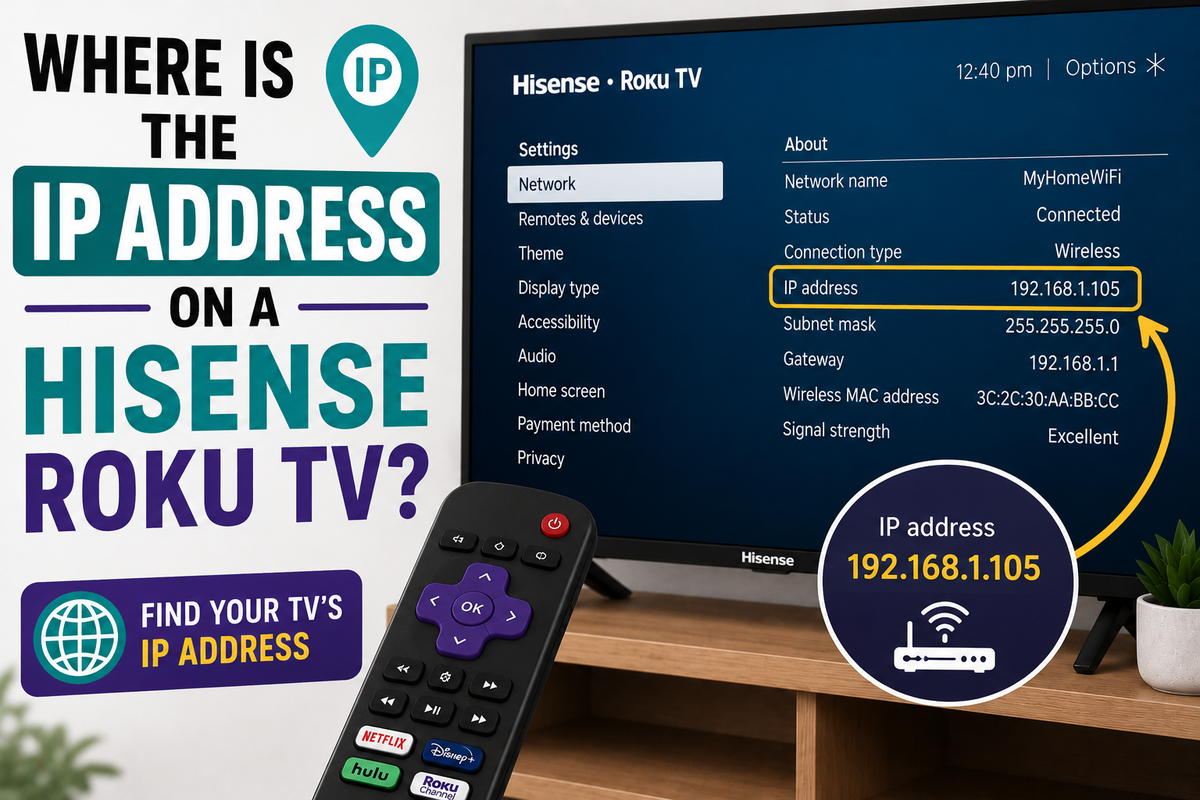
- Press the Home button on your Roku remote.
- Scroll to and select Settings.
- Select Network.
- Select About.
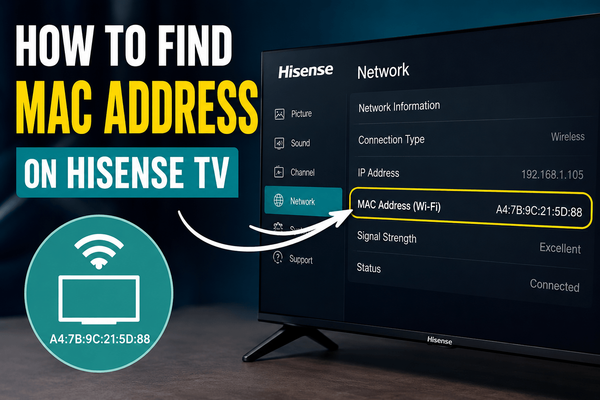
The IP address will be listed at the top of the network details, along with the connection type (Wi-Fi or wired), signal strength, and the TV's MAC address — useful if you also need that for router-level device filtering or a VPN configuration.
Method 2: Using the Official Roku App (no remote needed)
If your physical remote is lost, broken, or the batteries died, you can pull the IP address from your phone instead — as long as your phone and TV are connected to the same Wi-Fi network.
- Download and open The Roku App (Official) on your phone.
- Go to the Devices tab and select your Hisense Roku TV from the list.
- Tap the More (or three-dot) icon next to the device.
- Select View system info.
The IP address will appear on the "About This Device" screen. This only works if the app has been paired with the TV before, or if it can auto-discover it on the local network — which it typically does automatically when both devices share the same Wi-Fi.
Method 3: Through Your Router's Admin Page
If neither the remote nor the app is an option, you can find the TV's IP address from the device list on your router itself.
- Open a web browser on any device connected to your network.
- Enter your router's local address in the address bar — commonly 192.168.0.1 or 192.168.1.1 (check the label on the router itself if neither works).
- Log in with your router's admin credentials.
- Look for a section called Connected Devices, Device List, or DHCP Clients.
- Find the entry labeled "Hisense," "Roku," or a similar hostname — its IP address will be listed alongside its MAC address.
This method is also handy for confirming the TV is actually on your network at all, which is useful if the on-screen network settings aren't loading properly.
Method 4: Hisense Roku TV's Built-In Browser (if available)
Some Hisense Roku TV models support a basic web browser through the app store, which can be used as a workaround to check the TV's external (public) IP address rather than its local network IP:
- Launch the browser app on the TV.
- Navigate to a site like whatismyipaddress.com.
- The displayed address is your network's public IP, not the TV's local IP — useful for different troubleshooting purposes, such as checking geo-restricted content or confirming a VPN is active, but not the same number you'd use to connect to the TV from another device on your home network.
Why the Local IP Address Might Change
Hisense Roku TVs are usually assigned an IP address dynamically by your router (via DHCP), meaning it can change over time — for example, after a router reboot or a long period offline. If you need the TV's IP to stay the same for something like port forwarding or a fixed VPN setup, you can set a static IP or a DHCP reservation through your router's admin page rather than relying on the TV's current address staying put.
If the Network Settings Show No IP Address
If you go to Settings → Network → About and don't see an IP address listed, the TV likely isn't connected to a network at all. In that case:
- Go to Settings → Network → Set up connection and reconnect to Wi-Fi or plug in an Ethernet cable.
- Restart the router and the TV.
- Check for a pending system update under Settings → System → System update, since outdated firmware can occasionally cause network detection issues.
Bottom Line
For most people, the quickest way to find a Hisense Roku TV's IP address is Settings → Network → About on the TV itself. If the remote isn't available, the official Roku mobile app or your router's connected-devices list will get you the same information without needing to touch the TV at all.