How to Turn On 4K on a Hisense Roku TV
Introduction
A Hisense Roku TV is designed to deliver high-quality picture performance, but 4K resolution doesn't always activate automatically. If your movies, games, or streaming content don't look as sharp as expected, you may need to adjust a few settings.
Fortunately, enabling 4K on a Hisense Roku TV is usually a quick and simple process.
This guide explains how to activate 4K, optimize your display settings, and troubleshoot common problems that can prevent Ultra HD content from working correctly.
What Is 4K Resolution?
4K, also known as Ultra HD (UHD), is a display resolution of 3840 × 2160 pixels. Compared with Full HD (1920 × 1080), 4K provides:
- Sharper images.
- Better detail.
- Improved clarity.
- A more immersive viewing experience.
However, a compatible TV alone isn't enough. The content source, streaming service, and connected devices must also support 4K.
Step 1: Confirm That Your Hisense Roku TV Supports 4K
Not every Hisense Roku TV includes a 4K panel.
You can verify your TV's specifications by:
- Checking the model number.
- Looking at the product label.
- Reviewing the original packaging.
- Opening the TV information menu.
If your television supports only 1080p, enabling 4K won't be possible.
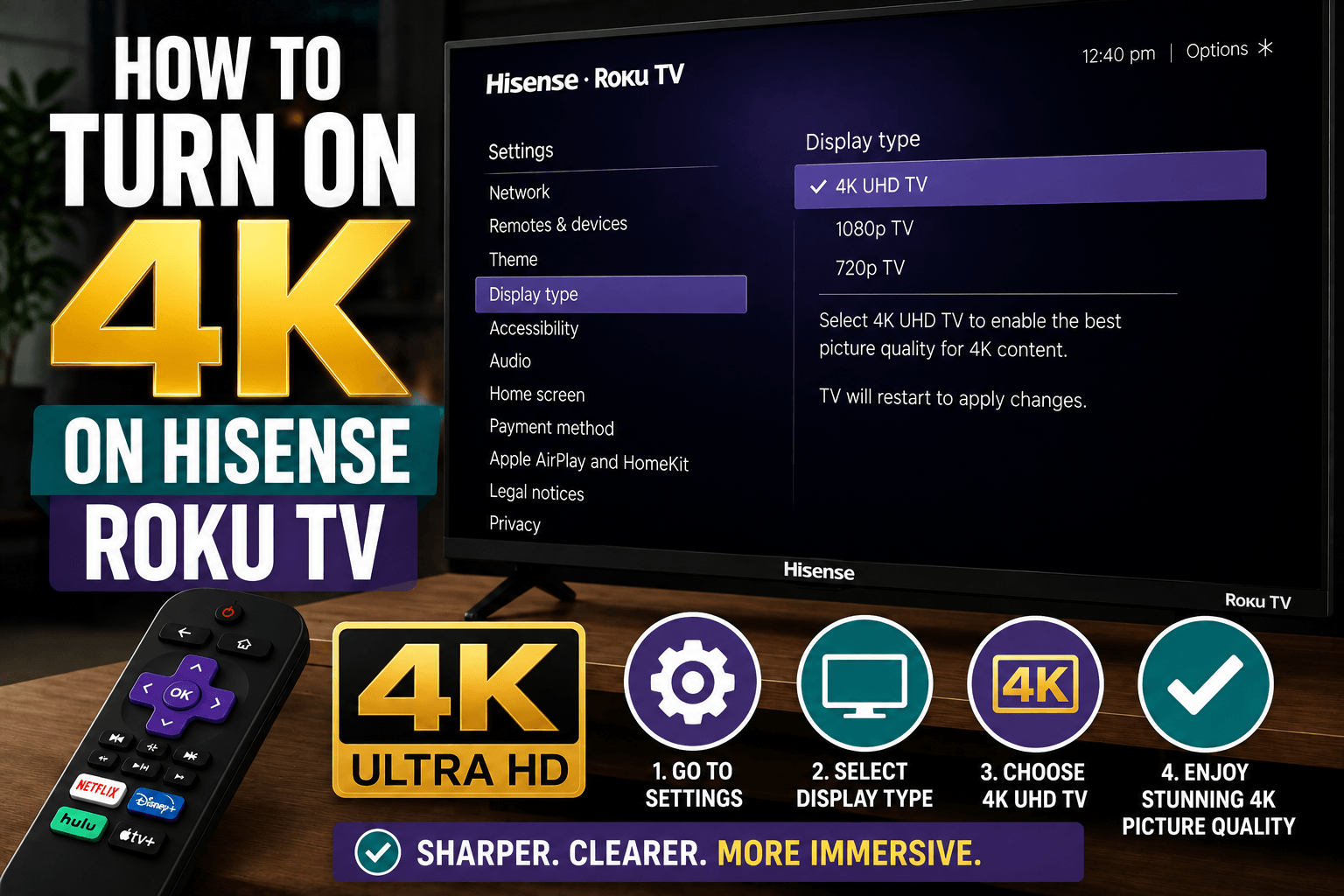
Step 2: Set the Correct Display Resolution
Your Roku TV automatically detects the best available resolution, but you can verify the settings manually.
Follow these steps:
- Press the Home button.
- Open Settings.
- Select Display Type.
- Choose 4K UHD TV or Automatic.
- Confirm the selection.
The television will test the display settings and apply the highest supported resolution.
Step 3: Enable 4K on Streaming Devices
If you're using an external device, you'll also need to activate 4K in that device's settings.
Common devices include:
- Streaming sticks.
- Gaming consoles.
- Blu-ray players.
- Cable boxes.
Look for options such as:
- Resolution.
- Video Output.
- Display Settings.
- HDMI Settings.
Make sure the output is set to 3840 × 2160 or 4K UHD.
Step 4: Use a High-Speed HDMI Cable
An outdated HDMI cable can prevent 4K content from working properly.
For the best results, use:
- High-Speed HDMI cables.
- Premium High-Speed HDMI cables.
- Ultra High-Speed HDMI cables.
Older cables may support only 1080p resolution.
Step 5: Verify That Your Streaming Service Supports 4K
Many streaming services offer both HD and 4K content.
Popular services with 4K support include:
- Netflix.
- Disney+.
- YouTube.
- Apple TV.
- Prime Video.
Some platforms require a premium subscription before 4K streaming becomes available.
Step 6: Update Your Roku Software
Software updates can improve compatibility with 4K content.
To check for updates:
- Press Home.
- Select Settings.
- Open System.
- Choose System Update.
- Select Check Now.
Install any available updates and restart the television.
Why Isn't 4K Working?
If you still can't enable 4K, one of the following issues may be responsible:
The Content Isn't Available in 4K
Not every movie, television show, or video is available in Ultra HD.
Your Internet Connection Is Too Slow
Most streaming services recommend at least 25 Mbps for stable 4K streaming.
The HDMI Port Doesn't Support 4K
Some devices work best when connected to specific HDMI ports.
The Streaming Device Is Limited to 1080p
Check the specifications of any connected device.
Frequently Asked Questions
Does 4K activate automatically?
In most cases, yes. Roku TVs usually detect the highest available resolution automatically.
Can I force 4K mode?
You can manually select the display type, but the TV still depends on compatible content and hardware.
Why does my picture still look blurry?
Low-resolution content won't become sharper simply because the television supports 4K.
Conclusion
Turning on 4K on a Hisense Roku TV is usually as simple as verifying the display settings and making sure your content source supports Ultra HD. Check your streaming services, update your software, and confirm that your HDMI cables and external devices are configured correctly.
Once everything is set up properly, you'll be able to enjoy movies, games, and TV shows in stunning 4K quality.