How to Stop Hisense Roku TV From Talking
Introduction
If your Hisense Roku TV suddenly starts reading menu items aloud, describing everything on the screen, or announcing every action you perform, don't worry. Your TV isn't malfunctioning.
In most cases, the Screen Reader or Audio Guide feature has been turned on accidentally. Fortunately, you can disable it in just a few minutes.
This guide explains several methods you can use to stop your Hisense Roku TV from talking.
Why Is Your Hisense Roku TV Talking?
Roku TVs include accessibility features designed to help people with visual impairments. When these features are enabled, the television can:
- Read menu items aloud.
- Announce selected options.
- Describe navigation actions.
- Provide spoken feedback while using apps.
The feature can sometimes be activated accidentally by pressing a shortcut on the remote or changing a setting in the accessibility menu.
Method 1: Use the Remote Shortcut
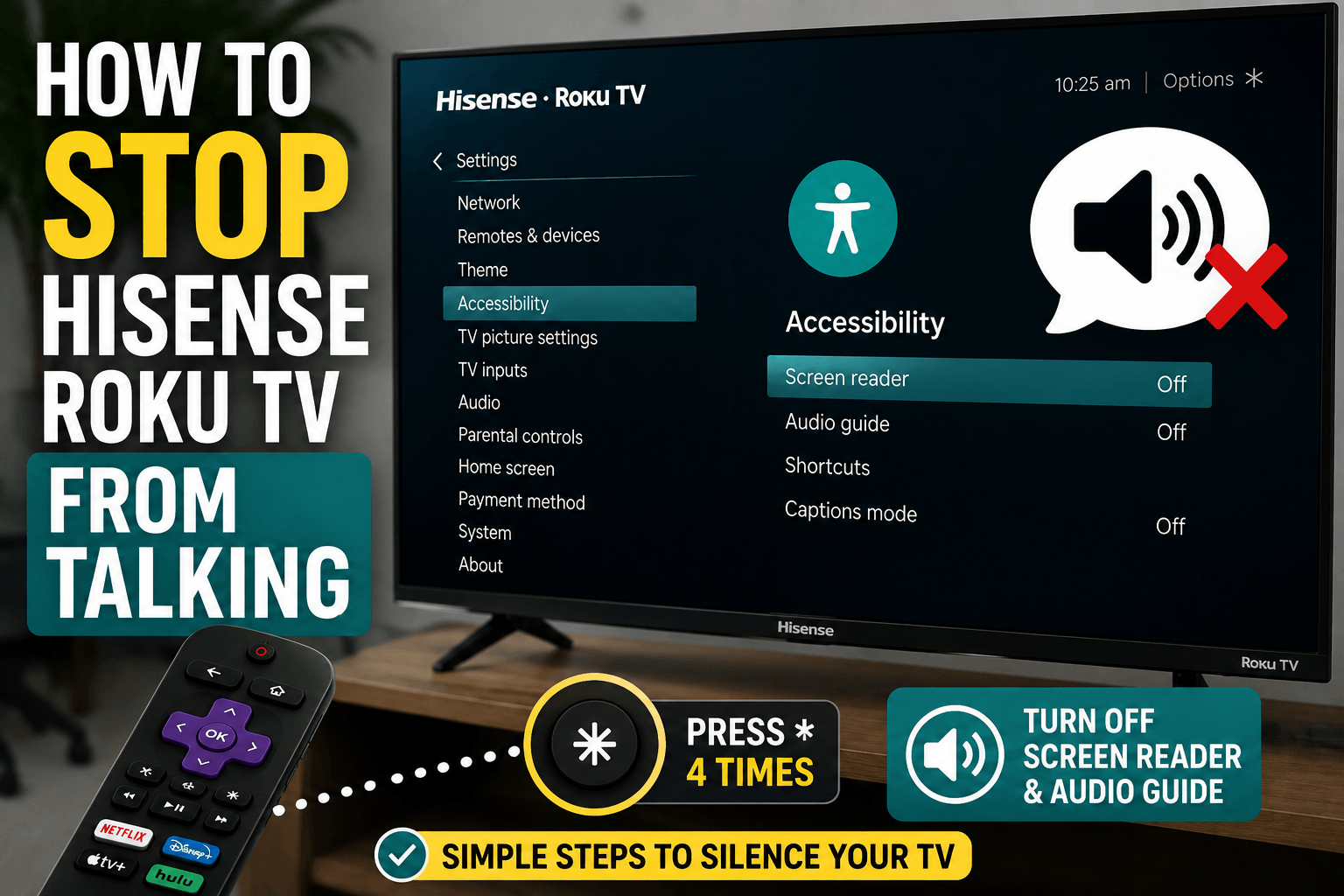
The fastest solution is to use Roku's built-in shortcut.
Follow these steps:
- Locate the asterisk (*) button on your Roku remote.
- Press the button four times in a row.
- Wait a few seconds.
On many Hisense Roku TV models, this shortcut turns the Audio Guide on and off.
If nothing happens, try one of the following methods.
Method 2: Turn Off the Screen Reader in Settings
You can also disable the feature through the settings menu.
Here's how:
- Press the Home button.
- Select Settings.
- Open Accessibility.
- Choose Screen Reader or Audio Guide.
- Select Off.
After disabling the setting, the voice narration should stop immediately.
Method 3: Disable the Accessibility Shortcut
If the problem keeps returning, the shortcut itself may be causing it.
To disable the shortcut:
- Press Home.
- Open Settings.
- Select Accessibility.
- Find Shortcut or Accessibility Shortcut.
- Turn the shortcut off.
This prevents the feature from being activated accidentally.
Method 4: Check Individual Streaming Apps
Some streaming services include their own accessibility settings.
Applications that may have separate audio description features include:
- Netflix.
- Disney+.
- YouTube.
- Apple TV.
- Prime Video.
If the voice only appears while using one specific app, check the app's settings and look for:
- Audio Description.
- Narration.
- Descriptive Audio.
- Accessibility.
Disable any active narration options.
Method 5: Restart the TV
Temporary software glitches can occasionally cause accessibility settings to behave unexpectedly.
To restart your television:
- Press Home.
- Select Settings.
- Open System.
- Select Power.
- Choose System Restart.
After the restart is complete, check whether the voice narration has stopped.
Method 6: Update Your Roku Software
Keeping your TV updated can prevent software-related issues.
To check for updates:
- Press Home.
- Open Settings.
- Select System.
- Choose System Update.
- Select Check Now.
Install any available updates before testing the television again.
Perform a Factory Reset as a Last Resort
If none of the previous methods solve the problem, you can reset the TV to its factory settings.
Keep in mind that a factory reset removes:
- Saved Wi-Fi networks.
- Installed applications.
- User preferences.
- Account information.
Use this method only after trying every other solution.
Conclusion
If your Hisense Roku TV won't stop talking, the Screen Reader or Audio Guide feature is almost always responsible. In most cases, pressing the asterisk button four times or disabling the feature through the Accessibility menu will solve the problem immediately.
If the issue continues, check your streaming apps, update your software, and restart the TV before considering a factory reset.