How to Screen Mirror an iPad to a Hisense Roku TV
Introduction
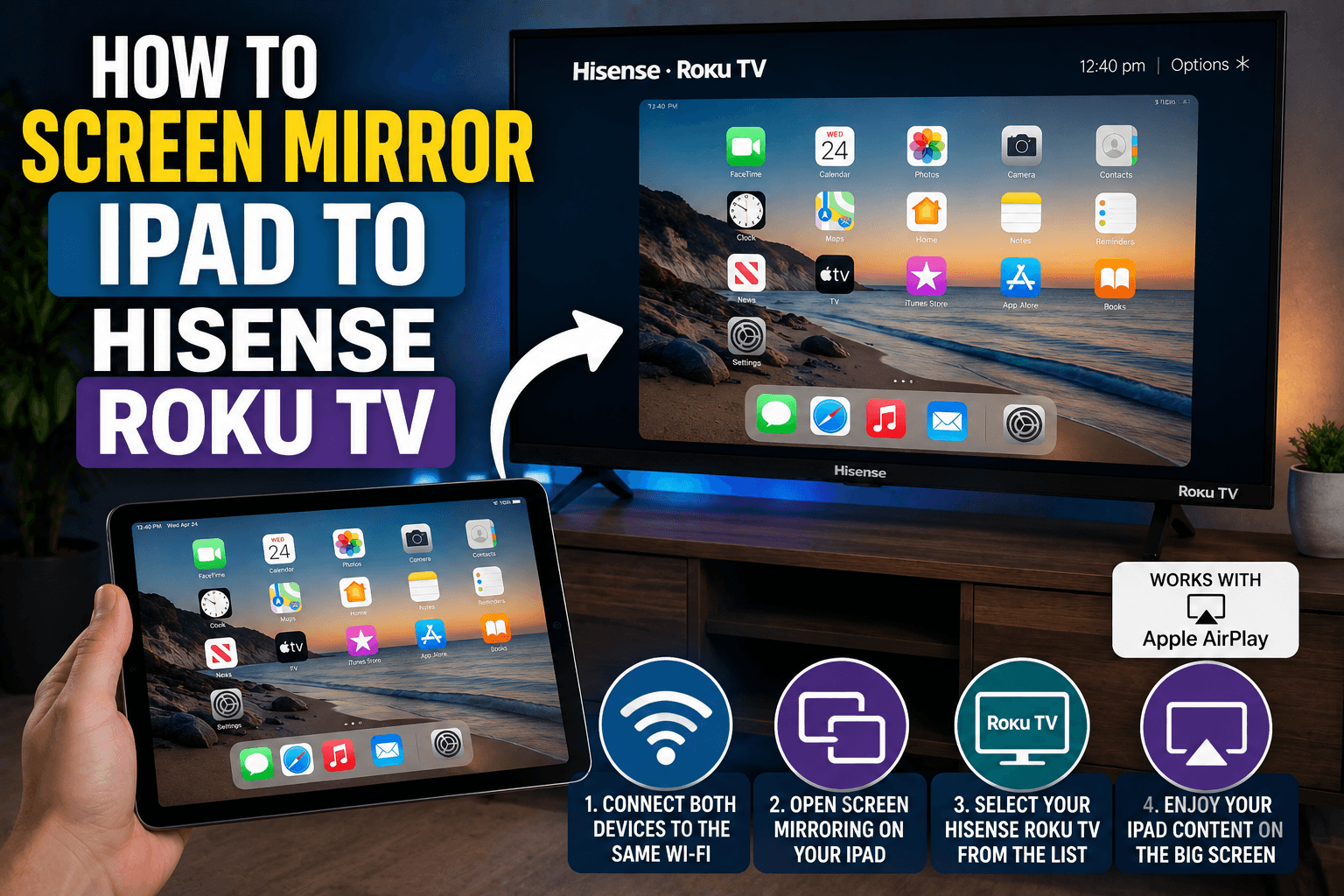
Screen mirroring allows you to display your iPad's screen directly on your Hisense Roku TV. Whether you want to watch videos, share photos, play games, browse websites, or give a presentation, mirroring can make everything easier to see on a larger screen.
Fortunately, connecting an iPad to a Hisense Roku TV is usually a quick and straightforward process.
In this guide, you'll learn several methods for mirroring your iPad to your television.
Before You Begin
Before attempting to connect your devices, make sure that:
- Your iPad and Hisense Roku TV are connected to the same Wi-Fi network.
- Both devices are turned on.
- Your Roku software is up to date.
- AirPlay is enabled on your television.
Without these requirements, screen mirroring may not work properly.
Method 1: Use Apple AirPlay
Most modern Hisense Roku TVs support Apple AirPlay.
Enable AirPlay on the TV
- Press the Home button on your Roku remote.
- Open Settings.
- Select Apple AirPlay and HomeKit.
- Turn AirPlay on.
Mirror Your iPad
- Swipe down from the upper-right corner of your iPad to open Control Center.
- Tap Screen Mirroring.
- Select your Hisense Roku TV from the device list.
- Enter the AirPlay code if one appears on the television.
After the connection is established, your iPad's display should appear on the TV.
Method 2: Stream Content Through Compatible Apps
You don't always need to mirror your entire screen.
Many applications include built-in casting or AirPlay support, including:
- YouTube.
- Apple TV.
- Netflix.
- Disney+.
- Prime Video.
To stream content:
- Open the app on your iPad.
- Start playing a video.
- Tap the AirPlay or Cast icon.
- Select your Hisense Roku TV.
This method often provides better performance than full screen mirroring.
Method 3: Update Your Roku Software
If your television doesn't appear in the list of available devices, the software may need to be updated.
To check for updates:
- Press Home.
- Open Settings.
- Select System.
- Choose System Update.
- Select Check Now.
Install any available updates before trying again.
Troubleshooting Screen Mirroring Problems
Verify That Both Devices Are Using the Same Network
Your iPad and Roku TV must be connected to the same Wi-Fi network.
Many homes have separate 2.4 GHz and 5 GHz networks. If your devices are connected to different networks, they may not detect each other.
Restart Both Devices
Restart your television:
- Open Settings.
- Select System.
- Choose Power.
- Select System Restart.
Then restart your iPad.
Disable VPN Services
VPN applications can interfere with AirPlay and screen mirroring.
Temporarily disable any active VPN connections and try again.
Check AirPlay Settings
Verify that AirPlay is enabled:
- Open Settings.
- Select Apple AirPlay and HomeKit.
- Confirm that AirPlay is turned on.
Frequently Asked Questions
Can every Hisense Roku TV mirror an iPad?
Most newer models support Apple AirPlay, but some older televisions may not include the feature.
Do I need an HDMI cable?
No. AirPlay uses a wireless connection.
Why can't my iPad find my TV?
The most common reasons include:
- AirPlay is disabled.
- The devices are connected to different networks.
- The TV software needs an update.
Conclusion
Screen mirroring an iPad to a Hisense Roku TV is simple once AirPlay is enabled. Connect both devices to the same Wi-Fi network, activate AirPlay, and select your television from the Screen Mirroring menu on your iPad.
If the connection doesn't work immediately, check your network settings, restart both devices, and update your Roku software.