How to Program a Universal Remote to a Hisense Roku TV
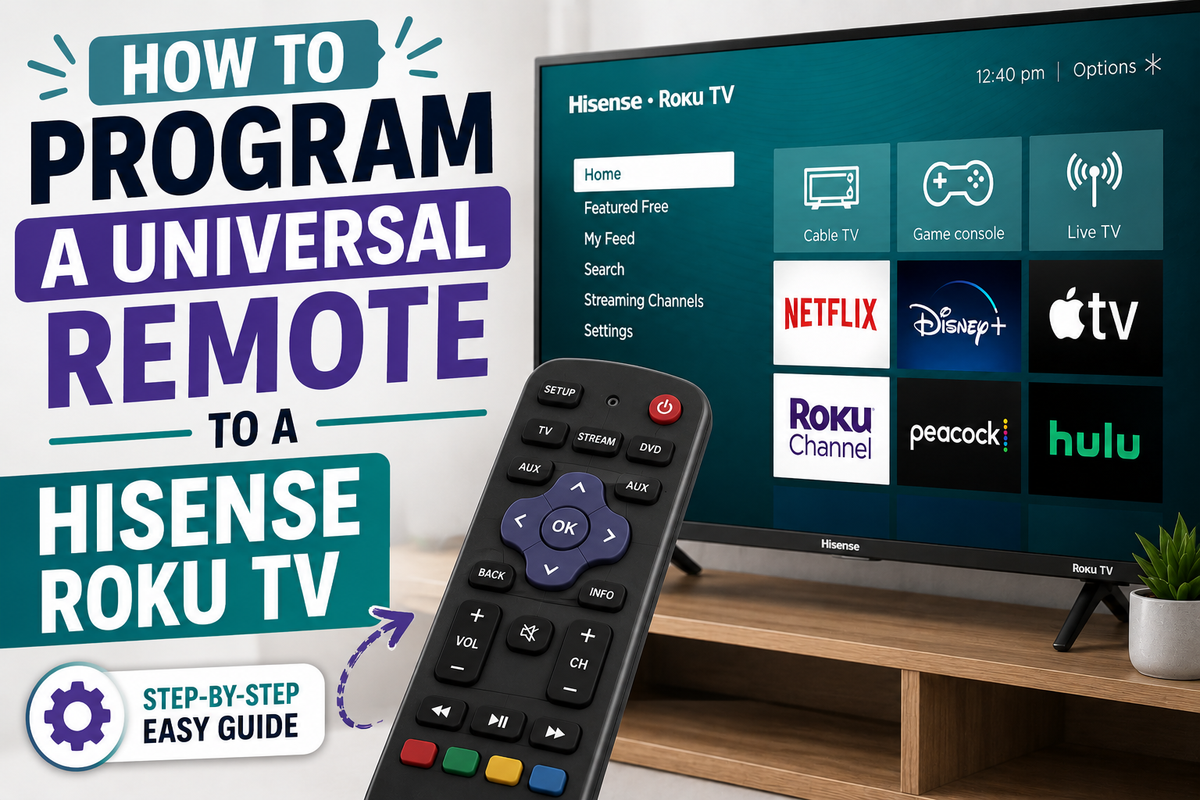
If the original remote for your Hisense TV has gone missing or stopped working, a universal remote is an easy fix — whether it's a GE, One For All, Xfinity, Philips, or any other brand. Hisense TVs running the Roku TV platform are set up almost the same way as standard Hisense models, but with a few differences worth knowing, including a separate set of codes you should try first.
What Makes the Roku Version Different
Hisense builds TVs on several different platforms — VIDAA, Google TV/Android TV, and Roku TV. Codes that work perfectly on a "regular" VIDAA-based Hisense set don't always work on the Roku version, because some basic commands (power, volume, input switching) are handled by the built-in Roku software. It's easy to tell which platform you have: if pressing the Home button brings up the purple Roku interface, you're dealing with a Roku TV model.
Before You Start
- Identify your universal remote's brand and model. Different manufacturers use different code lists and different procedures for entering setup mode.
- Test the IR transmitter. Point the remote at your phone's camera and press any button — a faint purple flash on screen confirms the infrared LED is working.
- Put in fresh batteries. Weak batteries are one of the most common reasons a "correct" code appears not to work.
- Clear the line of sight between the remote and the TV's IR receiver, usually located in the bottom corner of the screen bezel.
Method 1: Direct Code Entry
This is the fastest option if you already have a code in hand, whether from the remote's manual or a code list.
- Turn on the Hisense Roku TV manually, using the power button on the TV itself.
- On the universal remote, press and hold the Setup button (or Device/TV, depending on the model) until the indicator light stays on solid.
- Enter one of the codes from the list below.
- Once accepted, the indicator usually blinks twice to confirm.
- Point the remote at the TV and press Power. If the screen turns off, the code worked — also test volume, channel, and input switching.
Codes that most often work with Hisense Roku TV specifically:
- 11756
- 10748
- 0182
- 11314
- 0073
If none of those respond, try this general code, which tends to cover most built-in Roku TVs regardless of the manufacturer behind the panel:
- 3381
Code lists differ between remote manufacturers, so it's normal if the first code doesn't work. Just repeat steps 2–5 with the next code on the list.
Method 2: Auto Code Search
Use this if you don't have an exact code on hand, or if none of the known ones worked. The remote cycles through its internal database on its own.
- Turn on the TV.
- Press and hold Setup (on some models, hold Device and Power together) until the indicator stays lit.
- Point the remote at the TV and slowly press Power repeatedly — the remote steps through codes one at a time.
- The moment the TV turns off, immediately press Setup (or Enter/Stop, depending on the model) to lock in that working code.
- Test the remaining buttons — volume, channels, input source.
This method takes longer (sometimes 5–15 minutes), but it almost always finds a working code, even if you had no idea which one to use beforehand.
Method 3: Guided Setup Through a Provider's Remote
If your universal remote was issued by a cable or streaming provider (Xfinity, Spectrum, Cox, and similar), it usually has a built-in step-by-step wizard:
- On the receiver or the remote itself, go to Menu → Settings & Support → Remote Control → Program Remote (exact menu names vary by provider).
- Follow the on-screen prompts: select "Hisense" as the TV brand and confirm a few test button presses.
- The system automatically finds and saves a working code.
This method tends to be the most reliable, since functionality is verified in real time as the setup runs.
If Nothing Works
- Check for a firmware update. After a Hisense system update, a previously working code can occasionally stop responding — simply repeat the setup process.
- Reset the universal remote to factory defaults (usually by holding two specific buttons together for 3–5 seconds — check your remote's manual for the exact combination) and start the pairing process again.
- Recheck distance and angle — some Hisense Roku TV models have a fairly limited IR receiver range.
- If none of that helps, the issue may be with the TV's IR receiver itself, or you may prefer to control the TV over Wi-Fi instead, using the Roku mobile app, which doesn't require any IR codes at all.
Bottom Line
Setting up a universal remote on a Hisense Roku TV usually takes no more than 5–10 minutes: start with direct entry using the Roku-compatible codes (11756, 10748, 0182), and if those fail, move on to auto code search or the guided setup wizard through your provider's remote menu. Just make sure not to confuse codes meant for a standard Hisense TV (VIDAA/Android TV) with the ones meant for the Roku version, since they frequently don't overlap.