How to Program a Spectrum Remote to a Hisense Roku TV
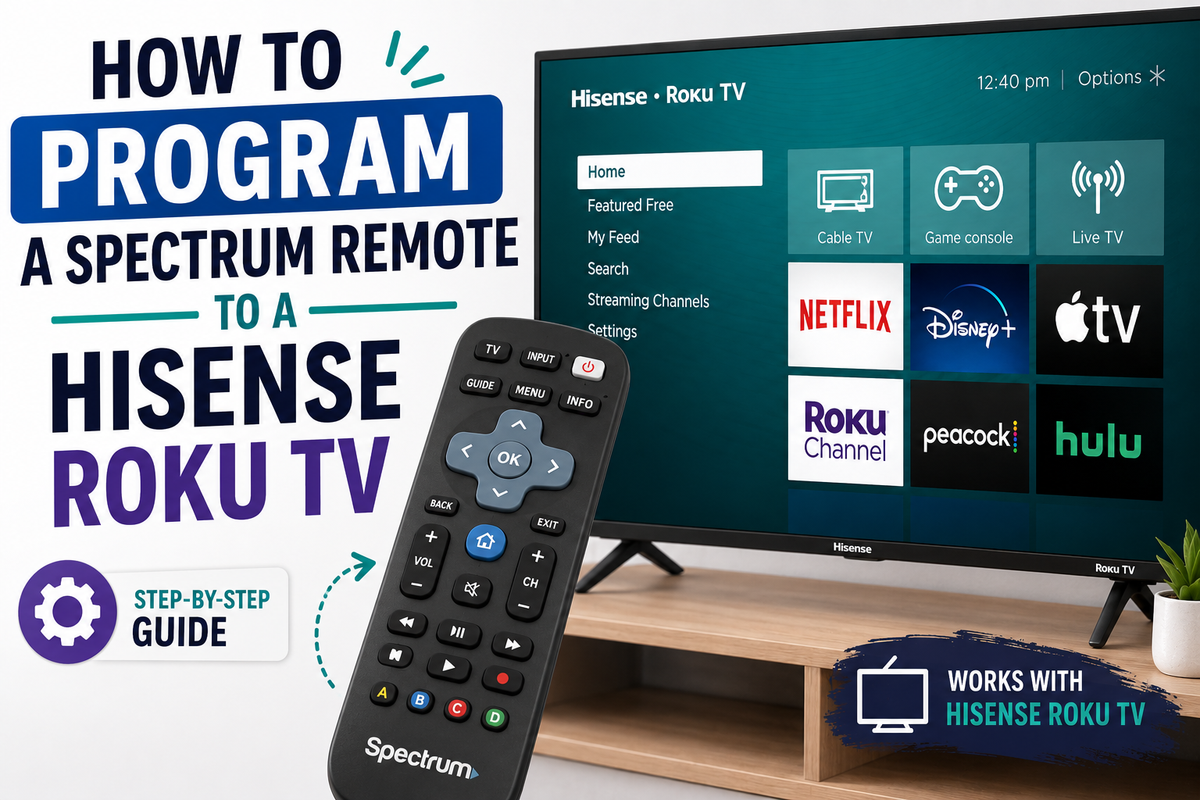
If you're a Spectrum cable or streaming customer, chances are the remote in your hand is meant to control more than just your Spectrum box — with the right setup, it can also power your TV on and off, adjust volume, and switch inputs. Pairing it with a Hisense Roku TV is straightforward once you know which method and codes to use, since Roku-based Hisense sets sometimes respond differently than standard Hisense models.
Why Roku Matters Here
Hisense builds TVs on a few different smart-TV platforms — VIDAA, Google TV/Android TV, and Roku TV. A Spectrum remote code that works perfectly on a VIDAA-based Hisense set may not respond at all on a Roku-based one, because the Roku software layer handles some of the basic IR commands differently. That's why it's worth trying the Roku-specific codes first if your set has the Roku TV interface (you'll see the purple Roku home screen when you press the Home button).
Before You Begin
- Check your remote type. Spectrum has issued several remote generations over the years — some are simple IR remotes, others are newer RF/Bluetooth models with an on-screen guided setup. The steps below cover both.
- Confirm the IR emitter works. Point the remote at a smartphone camera and press a button — a faint purple glow on screen means the infrared transmitter is functioning.
- Fresh batteries. A weak battery is one of the most common reasons a "correct" code appears not to work.
- Line of sight. Make sure nothing blocks the path between the remote and the TV's IR receiver.
Method 1: Manual Code Entry (classic Spectrum remotes)
- Turn on the Hisense Roku TV using the power button on the TV itself.
- On the Spectrum remote, press and hold the TV button until the LED at the top blinks twice or switches from red to green.
- Enter one of the codes below using the number pad.
- If the code is accepted, the light will blink twice and turn off.
- Point the remote at the TV and press Power. If the TV turns off, the pairing worked — also test Volume and Input/Source to confirm full control.
Codes worth trying first for Hisense Roku TV models:
- 11756
- 11602
- 10748
- 11314
- 12098
If those don't respond, try the general code that tends to work across most Roku-based televisions regardless of the TV's manufacturer:
- 3381
As with any universal remote, code lists aren't identical across every Spectrum remote generation. If the first code doesn't work, that doesn't mean the process failed — just move to the next one on the list.
Method 2: Guided On-Screen Setup (newer Spectrum remotes)
Spectrum's more recent remotes support a menu-driven setup that walks you through pairing without needing to memorize a code.
- On your Spectrum receiver or streaming box, press Menu.
- Go to Settings & Support.
- Select Remote Control, then Program Remote.
- Follow the on-screen prompts — you'll be asked to select your TV brand (Hisense) and confirm a few test button presses (power, volume) until the correct code is locked in automatically.
This method is generally the most reliable, since it tests functions in real time and adjusts if the first code attempt doesn't fully work.
Method 3: Auto Code Search
If you don't know your TV brand's code or the guided setup isn't available on your remote model, use the manual scan method instead.
- Turn on the TV.
- Press and hold Setup (or TV, depending on the remote) until the light stays on solid.
- Press Power repeatedly and slowly, keeping the remote pointed at the TV — the remote steps through its internal code database one by one.
- The instant the TV turns off, press Setup (or the confirmation button specified for your model) to lock in that working code.
- Test volume, input switching, and channel buttons to confirm everything responds.
If the Remote Still Won't Pair
- Check for a firmware update. A recent Hisense software update can occasionally cause a previously working code to stop responding — simply repeat the setup and try the same code again, or move to the next one.
- Reset the remote. Most Spectrum remotes reset by removing the batteries for about 30 seconds, or by holding a specific button combination listed in the remote's manual.
- Rule out IR blocking. Some Hisense Roku TV units, particularly base/entry-level models, ship with a limited IR window — try moving closer or aiming more directly at the receiver, usually located at the bottom corner of the TV bezel.
- Try the Spectrum TV App as an alternative if IR pairing consistently fails — it can control some smart TV functions over Wi-Fi instead of infrared.
Bottom Line
For most Hisense Roku TVs, the fastest route is manual code entry with 11756, 11602, or 10748, followed by the general Roku code 3381 if none of those work. If you'd rather skip memorizing numbers, the guided on-screen setup through Settings & Support → Remote Control → Program Remote handles the trial-and-error automatically. And if all else fails, the auto-search scan method will eventually find a working code even without knowing it in advance.