How to Program a GE Universal Remote to a Hisense Roku TV
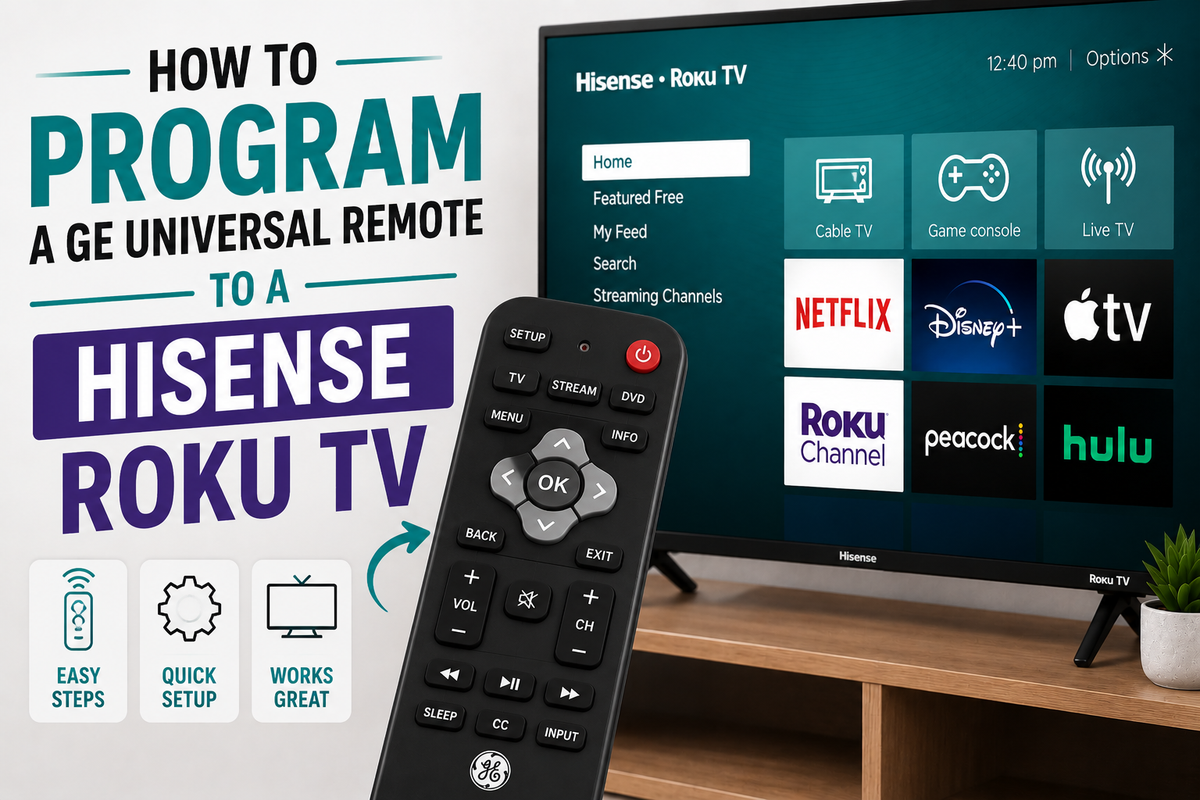
GE universal remotes (made by Jasco/ByJasco) are one of the most common replacement remotes on the market, and they're generally a solid match for Hisense Roku TVs. The catch is that GE has released several different code-list generations over the years, so getting the pairing right starts with figuring out exactly which version of remote you're holding.
Why the "CL" Version Matters
Every GE universal remote is built on a specific code database, labeled CL3, CL4, CL5, or CL6:
- CL3 — the oldest library, common on remotes sold before 2018.
- CL4 — used roughly from 2018–2020.
- CL5 — covers 2020–2022 and was the first version to add solid support for TCL Roku and Hisense Roku TVs.
- CL6 — the newest, from 2022 onward, with a more consolidated code library and better accuracy for current TV models.
Codes are not interchangeable between versions — a CL5 code entered into a CL3 remote simply won't be recognized. This mismatch is the single most common reason people report that "none of the codes work."
To find your version: remove the batteries and check the sticker on the inside of the battery compartment (or on the underside of the cover). It will read CL3, CL4, CL5, or CL6.
One more important detail: GE's code lists don't have a separate "Roku" category. A Hisense Roku TV is programmed using the Hisense codes — since Roku TV models are simply built by the TV manufacturer (Hisense, TCL, Onn, etc.) with Roku's software layer added on top, not a separate hardware brand.
Before You Begin
- Confirm the CL version as described above.
- Test the IR emitter. Point the remote at a smartphone camera and press a button — a faint purple flash confirms the infrared LED is working.
- Fresh batteries — a common source of "the code isn't working" complaints that's actually just low power.
- Clear line of sight to the TV's IR receiver, typically near the bottom of the screen bezel.
Method 1: Direct Code Entry
- Turn on the Hisense Roku TV using the power button on the TV itself.
- On the GE remote, press and hold SETUP until the red light stays on solid.
- Press the TV button once — the light will blink.
- Enter one of the codes below using the number pad.
- If accepted, the red light turns off. If it stays on, the code was rejected — wait about 10 seconds for the light to go out on its own, then repeat from step 2 with the next code.
- Point the remote at the TV and press Power to test. If the screen turns off, check volume, channel, and input buttons to confirm full functionality.
Codes to try first for Hisense Roku TV models:
- 11756
- 0182
- 0073
- 10748
- 2891
Codes are listed roughly from most to least common. If your remote is CL5 or CL6, prioritize these — CL3 and CL4 remotes tend to have less reliable Roku TV support and may need the auto search method instead.
Method 2: Automatic Code Search
If you don't know your exact code, or none of the ones above worked, let the remote scan through its own database.
- Turn on the TV.
- Press and hold SETUP until the red light stays on.
- Press the TV button.
- Point the remote at the TV and press Power repeatedly and slowly — the remote will step through its stored codes one at a time.
- The instant the TV turns off, press SETUP immediately to lock in that code.
- Test the remaining buttons to confirm everything responds correctly.
This method takes longer — sometimes five to fifteen minutes — but it doesn't require knowing a code in advance and tends to work even when a specific code list seems outdated.
Method 3: Online Code Lookup
Jasco (the company behind GE remotes) maintains an official code lookup tool where you can enter your remote's model number and TV brand to get a verified, up-to-date code list matched to your specific CL version. This is worth checking if the codes above don't get you all the way to full functionality.
Troubleshooting Tips
- Partial functionality (power works, but volume or inputs don't): this usually means the code is a partial match. Try the next code in the same list rather than assuming the remote is broken.
- CL3 remotes and Roku TVs: older CL3 remotes generally have weaker support for newer Hisense Roku models. If direct entry and auto search both fail, it may be worth upgrading to a current CL5/CL6 GE remote.
- Firmware updates: a Hisense system update can occasionally cause a previously working code to stop responding — simply repeat the setup with the same or next code.
- Reset the remote: removing the batteries for about 30 seconds, or holding the button combination listed in your remote's manual, restores factory settings if programming gets stuck.
Bottom Line
To pair a GE universal remote with a Hisense Roku TV, first check your remote's CL version inside the battery compartment, then use the Hisense code table (starting with 11756 or 0182) rather than looking for a separate "Roku" code. If direct entry doesn't land on a full match, the automatic code search will almost always find one — it just takes a bit more patience.