How to Program a DirecTV Remote to a Hisense Roku TV
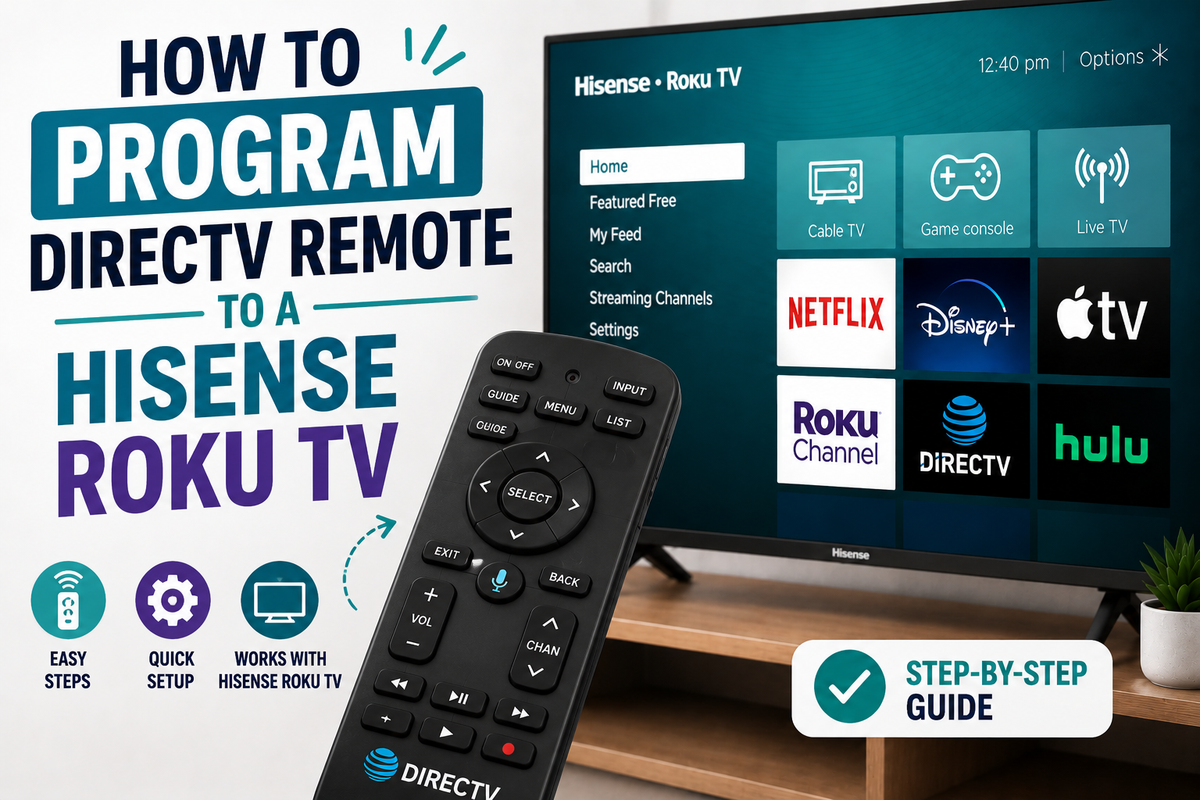
DirecTV remotes (like the RC73, RC71, or Genie remote) are built to control more than just your satellite receiver — with the right code, the same remote can power your TV on and off, adjust volume, and switch inputs. Pairing one with a Hisense Roku TV works a little differently than with a standard Hisense set, so it helps to know which codes and steps apply specifically to the Roku version.
Why Roku TV Needs Its Own Approach
Hisense sells TVs across several platforms — VIDAA, Google TV/Android TV, and Roku TV. A code that works fine on a VIDAA-based Hisense doesn't necessarily work on a Roku-based one, since some basic IR commands are processed by the Roku software layer rather than Hisense's own firmware. If pressing Home brings up the purple Roku interface, you're on a Roku TV and should prioritize Roku-friendly codes below. One quirk specific to DirecTV remotes and Hisense Roku TVs: some users find that power control works right away but volume doesn't respond until they try one of the alternate codes — that's a sign the first code was only a partial match, not that programming failed.
Before You Start
- Identify your DirecTV remote model (RC73, RC71, RC65, Genie, etc.) — the button layout for entering setup mode varies slightly between models.
- Test the IR emitter. Point the remote at your phone's camera and press a button — a faint purple flash confirms the infrared transmitter works.
- Fresh batteries. Weak batteries are a common, overlooked reason a "correct" code seems to fail.
- Clear line of sight between the remote and the TV's IR receiver, usually near the bottom of the screen bezel.
Method 1: Direct Code Entry
- Turn on the Hisense Roku TV manually, using the power button on the TV.
- On the DirecTV remote, slide the mode switch to TV.
- Press and hold MUTE and SELECT at the same time until the green light above the switch flashes twice.
- Enter one of the codes from the list below using the number pad.
- The green light should flash twice again to confirm the code was accepted.
- Point the remote at the TV and press Power. If the screen turns off, the pairing worked — also test volume, channel, and input to confirm full control.
Codes worth trying first for Hisense Roku TV models:
- 11758
- 11756
- 10748
- 12183
- 0182
If volume or input buttons don't respond after the TV turns off with the first code, that's usually a partial match — repeat the steps above with the next code on the list rather than assuming something went wrong.
Method 2: Menu-Guided Setup (newer DirecTV remotes)
Some current DirecTV remotes support a step-by-step wizard through the on-screen menu instead of manual code entry.
- Press Menu on the remote.
- Go to Settings → Remote Control → Program Remote.
- Select TV, then choose Hisense as the brand (or enter the code manually if prompted).
- Follow the on-screen prompts and confirm a few test button presses — power and volume — until the system locks in a working code.
This method tends to be more reliable than blind trial-and-error, since it checks functionality as it goes.
Method 3: Auto Code Search
If you don't have a known code, or none of the ones above work fully, let the remote search on its own.
- Turn on the TV.
- Slide the mode switch to TV, then press and hold MUTE and SELECT until the light flashes twice.
- Enter 9-9-1 to start the automatic search (check your remote's manual, as the exact search sequence can vary by model).
- Slowly press CH+ or Power while pointing the remote at the TV — it will cycle through codes.
- As soon as the TV responds (turns off or changes channel), press SELECT to stop the scan and lock in that code.
- Test the remaining buttons to confirm everything works.
A Known Limitation Worth Knowing About
Some Hisense Roku TV owners have reported in DirecTV community forums that after successfully pairing a DirecTV remote, the pairing doesn't always persist through a full power cycle — meaning volume or guide controls can stop responding after the TV is turned off and back on, requiring the remote to be reprogrammed. If this happens repeatedly on your set, check for a pending Hisense firmware update, since this kind of intermittent pairing issue is often addressed in software updates rather than fixed by trying a different code.
If Nothing Works
- Check for a Hisense firmware update. A system update can occasionally cause a previously working code to stop responding — simply repeat the programming steps.
- Reset the DirecTV remote to factory defaults if it becomes unresponsive during setup — check your remote model's manual for the reset button combination, which varies by model.
- Recheck distance and angle. Some Hisense Roku TV models have a narrower IR reception window than older sets.
- If IR pairing consistently fails, some Hisense Roku TVs can instead be controlled through the DirecTV Stream app or a Google TV Google Home integration, depending on which streaming setup you're using — worth checking if you have a Gemini box rather than a traditional satellite receiver.
Bottom Line
For most Hisense Roku TVs, start with direct code entry using 11758, 11756, or 10748. If volume or inputs don't fully respond, try the next code on the list rather than giving up — it's usually just a partial match. The menu-guided setup under Settings → Remote Control → Program Remote is the most reliable option if your remote supports it, and auto code search is a solid fallback when no code seems to work at all.