How to Hook Up a Wii to a Hisense Roku TV
Introduction
The Nintendo Wii may be an older gaming console, but it's still a popular choice for family entertainment. If you've recently connected your Wii to a Hisense Roku TV and aren't sure how to set it up, the process is much easier than you might expect.
Depending on your TV model, you can connect the console using composite cables, component cables, or an adapter.
This guide explains how to connect a Wii to a Hisense Roku TV and how to solve common connection problems.
What You'll Need
Before you begin, make sure you have the following items:
- A Nintendo Wii console.
- A Hisense Roku TV.
- A Wii AV cable.
- A power adapter for the Wii.
- A sensor bar.
- A pair of Wii controllers.
If your TV doesn't have the required ports, you may also need an AV-to-HDMI converter.
Method 1: Connect the Wii Using Composite Cables
Most Nintendo Wii consoles use composite cables with three connectors:
- Yellow (video)
- White (left audio)
- Red (right audio)
Follow these steps:
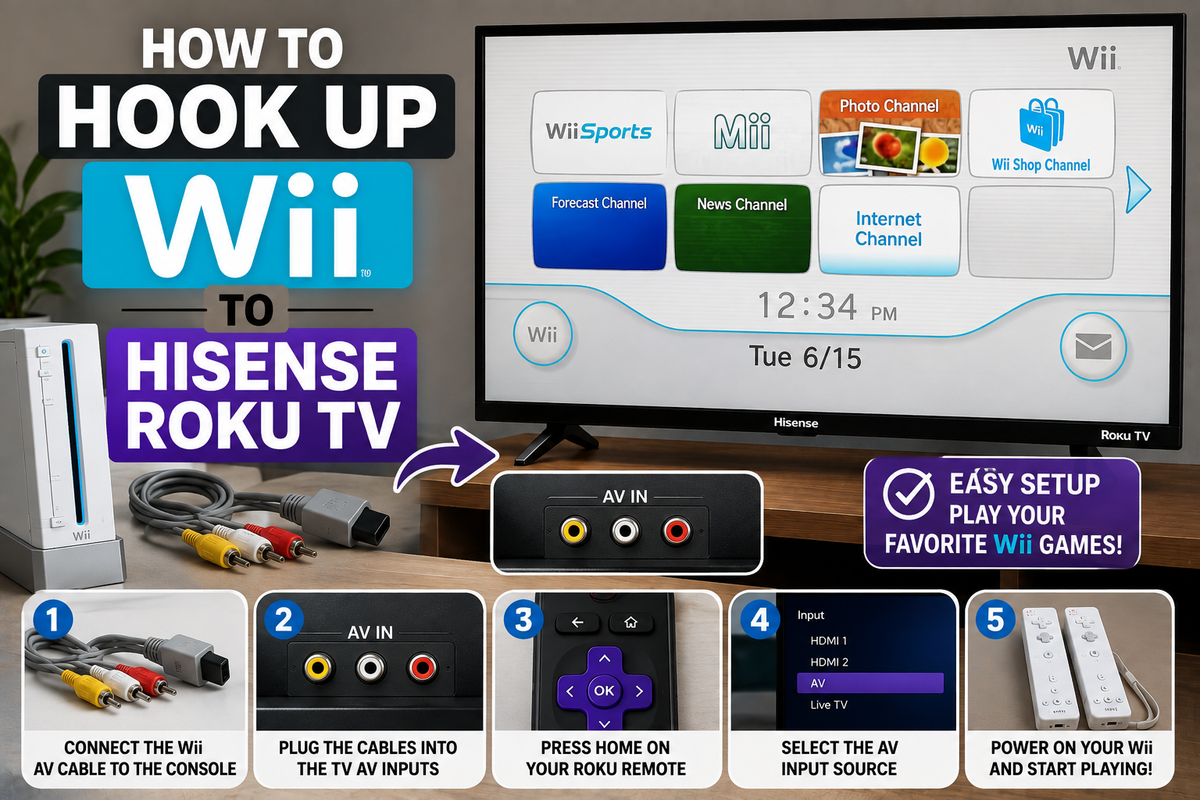
- Turn off the TV and the Wii.
- Locate the AV input ports on the back or side of the TV.
- Connect the yellow cable to the video input.
- Connect the red and white cables to the audio inputs.
- Connect the other end of the cable to the Wii.
- Turn on both devices.
Step 2: Select the Correct Input on the TV
After connecting the cables:
- Press the Home button on your Roku remote.
- Select Input or Live TV.
- Choose the AV input.
- Wait for the Wii home screen to appear.
If the image doesn't appear immediately, verify that the correct input is selected.
Method 2: Use an AV-to-HDMI Adapter
Many newer Hisense Roku TVs don't include composite inputs.
In this case, you'll need an adapter.
Setup instructions:
- Connect the Wii AV cable to the adapter.
- Connect an HDMI cable to the adapter.
- Plug the HDMI cable into the TV.
- Turn on the Wii.
- Select the appropriate HDMI input.
The adapter converts the analog signal into a format the television can recognize.
Method 3: Improve the Picture Quality With Component Cables
If your TV supports component inputs, you can achieve a better image than standard composite cables provide.
Component cables use five connectors:
- Green
- Blue
- Red (video)
- Red
- White (audio)
This connection can improve image quality and provide a sharper display.
Troubleshooting Common Problems
No Picture on the Screen
Try the following:
- Confirm that all cables are connected correctly.
- Select a different input source.
- Restart the TV.
- Restart the Wii.
No Sound
Check the red and white audio cables.
If you're using an adapter, make sure it supports audio transmission.
A Black-and-White Image Appears
This usually indicates an incompatible video signal or an incorrectly connected cable.
Reconnect the cables and verify the input settings.
The TV Doesn't Recognize the Console
Try another HDMI port or test another adapter.
Frequently Asked Questions
Can I connect a Wii to a Hisense Roku TV without an adapter?
Yes, if your television includes composite or component inputs.
Can I use an HDMI cable directly with the Wii?
No. The original Nintendo Wii doesn't include a native HDMI output.
Will Wii games display in 4K?
No. The Wii outputs standard-definition or enhanced-definition video, depending on the connection type.
Conclusion
Connecting a Wii to a Hisense Roku TV is a straightforward process. Most users can connect the console with standard AV cables, while newer televisions may require an AV-to-HDMI adapter.
Once everything is connected correctly, you'll be ready to enjoy your favorite Wii games on the big screen.