How to Find the IP Address on a Hisense Roku TV
Introduction
Every device connected to a network receives an IP address, including your Hisense Roku TV. You may need this information when troubleshooting connection problems, setting up a router, configuring network settings, or connecting other devices to your television.
Fortunately, finding the IP address on a Hisense Roku TV is quick and easy.
This guide explains several methods you can use to locate your TV's IP address.
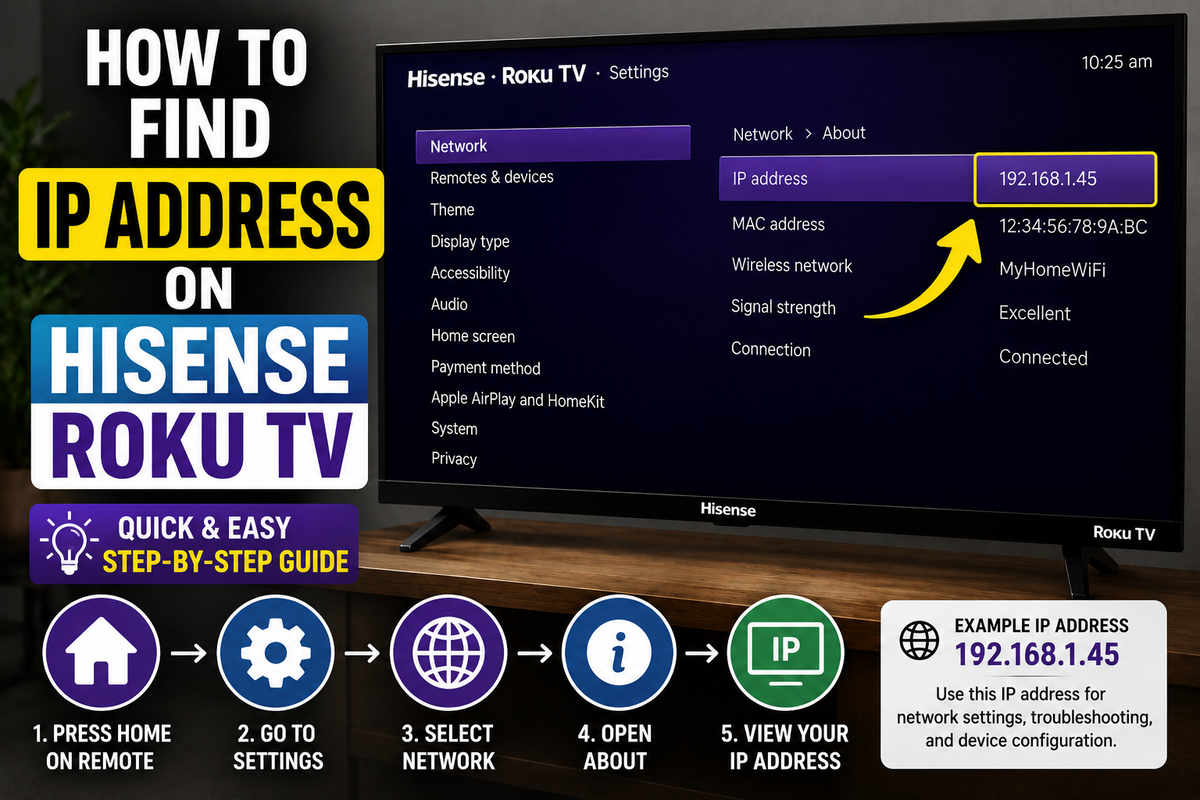
Method 1: Find the IP Address Through the Roku Settings Menu
The easiest way to locate the IP address is through the television's network settings.
Follow these steps:
- Press the Home button on your Roku remote.
- Select Settings.
- Choose Network.
- Select About.
You'll see several pieces of network information, including:
- IP address
- Connection status
- Wireless network name
- MAC address
- Signal strength
Write down the IP address if you plan to use it later.
Method 2: Use the Roku Mobile App
The Roku mobile app can also help you identify your television on your local network.
To check your device:
- Open the Roku app.
- Select Devices.
- Choose your Hisense Roku TV.
- Open the device information page.
Depending on your app version, network details may be available.
Method 3: Check Your Router's Device List
If you can't access the television's settings, your router can usually display the IP address of every connected device.
The process varies depending on the router model, but the general steps are:
- Open a web browser.
- Sign in to your router's administration panel.
- Open the connected devices section.
- Locate your Hisense Roku TV.
- View the assigned IP address.
Your television may appear under names such as:
- Hisense Roku TV
- Roku TV
- Living Room TV
- Roku Device
Method 4: Use the Roku Mobile App Remote if the Physical Remote Is Missing
If you don't have access to the original remote, you can still navigate the television using the Roku mobile app.
After connecting the app to your TV:
- Open the virtual remote.
- Navigate to Settings.
- Select Network.
- Open About.
The IP address will appear on the screen.
Why Would You Need Your TV's IP Address?
Knowing the IP address can help you:
- Troubleshoot network problems.
- Configure router settings.
- Use screen mirroring.
- Connect third-party applications.
- Manage smart home devices.
Many advanced networking tools also require the device's IP address.
Troubleshooting Tips
The TV Isn't Connected to Wi-Fi
An IP address won't appear if the television isn't connected to a network.
Verify your connection:
- Open Settings.
- Select Network.
- Choose Check Connection.
The IP Address Changes Frequently
Most home networks use dynamic IP addresses, which means the router can assign a new address automatically.
If you need a permanent address, consider configuring a static IP reservation through your router.
The Network Information Screen Is Empty
Restart both your router and your television.
Then reconnect the TV to your Wi-Fi network.
Frequently Asked Questions
Does every Hisense Roku TV have an IP address?
Yes. Any Roku TV connected to a network receives an IP address.
Can I find the IP address without a remote?
Yes. You can use the Roku mobile app or check your router's device list.
Is the IP address the same as the MAC address?
No. An IP address identifies the device on your network, while a MAC address identifies the network hardware itself.
Conclusion
Finding the IP address on a Hisense Roku TV usually takes less than a minute. The fastest method is to open the Network > About menu directly on the television.
If you can't access the TV, you can also locate the IP address through the Roku app or your router's administration panel.