How to Clear Cache on Hisense Roku TV
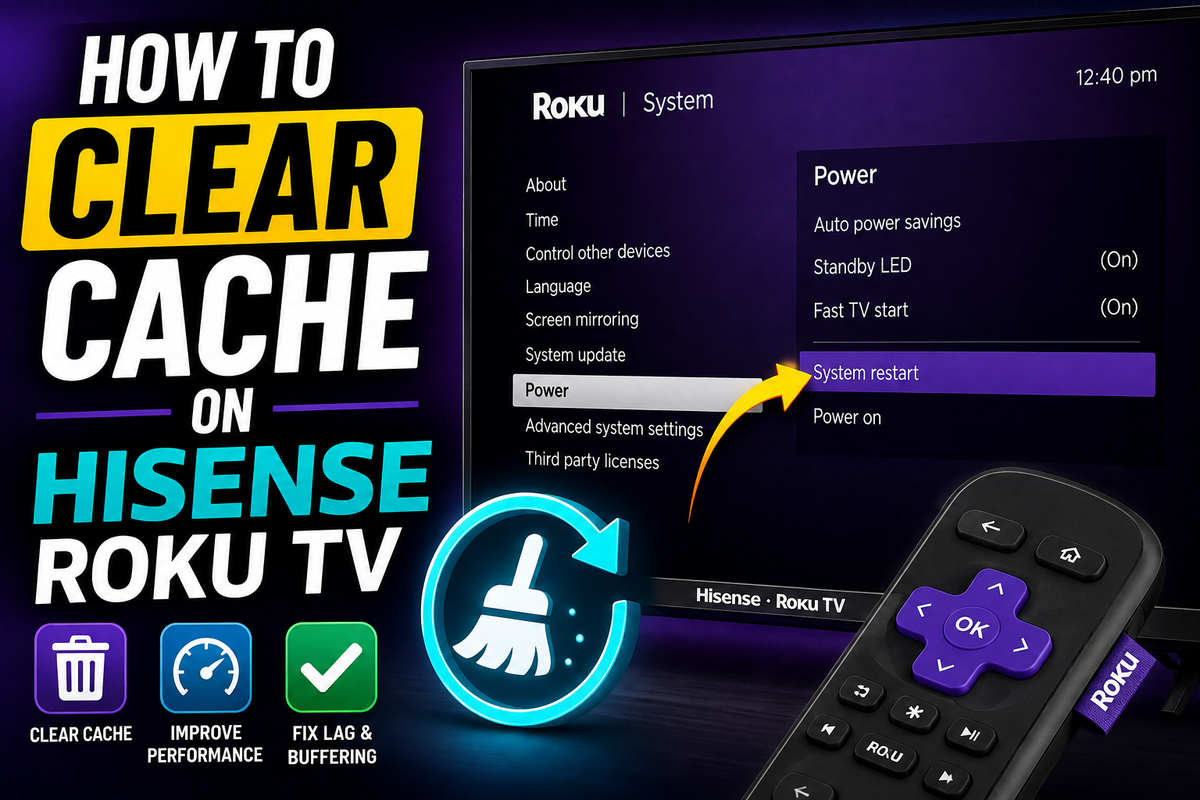
If your Hisense Roku TV has become slow, apps keep crashing, or videos constantly buffer, clearing the cache may solve the problem.
Unlike Android TVs, Hisense Roku TVs don't include a dedicated Clear Cache button in the settings menu. Instead, Roku uses a hidden restart process that removes temporary files and refreshes the system. This method can improve performance without deleting your apps or account information.
Signs That Your TV Cache Needs to Be Cleared
You should consider clearing the cache if you notice any of the following issues:
- Streaming apps freeze unexpectedly.
- Netflix or YouTube takes too long to open.
- The home screen responds slowly.
- Menus lag when you navigate with the remote.
- Videos constantly buffer.
- Apps close without warning.
Temporary files are designed to improve performance, but they can sometimes become corrupted and cause unexpected problems.
Method 1: Use the Hidden Roku Remote Sequence
This is the fastest and most popular way to clear the cache on a Hisense Roku TV.
Follow these steps:
- Go to the Home screen.
- Press the Home button 5 times.
- Press the Up button 1 time.
- Press the Rewind button 2 times.
- Press the Fast Forward button 2 times.
The complete button sequence looks like this:
Home ×5 → Up ×1 → Rewind ×2 → Fast Forward ×2
After entering the sequence:
- The screen may freeze for a few seconds.
- The TV will automatically restart.
- The cache will be cleared during the reboot process.
The restart process usually takes between 30 seconds and 2 minutes.
Method 2: Restart Your Hisense Roku TV from the Settings Menu
If the remote shortcut doesn't work, try restarting the TV through the settings menu.
- Press the Home button.
- Select Settings.
- Open System.
- Choose Power.
- Select System Restart.
- Choose Restart.
Although Roku doesn't provide a traditional cache-clearing option, restarting the device removes many temporary system files and often resolves performance issues.
Method 3: Perform a Power Cycle
Sometimes, a simple power cycle can solve issues that a standard restart cannot fix.
Here's how:
- Turn off the TV.
- Unplug the power cable.
- Wait for 60 seconds.
- Plug the TV back in.
- Turn the TV on.
This process refreshes the temporary memory and can help eliminate system slowdowns.
How to Clear the Cache for a Single App
Hisense Roku TVs don't allow users to clear the cache for individual apps.
If only one app is causing problems, try this workaround:
- Highlight the app on the home screen.
- Press the Star (*) button on the remote.
- Select Remove Channel.
- Restart the TV.
- Reinstall the app.
Removing and reinstalling an app often resolves issues caused by corrupted temporary files. Community discussions and troubleshooting guides frequently recommend this method for problematic streaming apps.
Should You Perform a Factory Reset?
A factory reset should be your last option.
Resetting the TV will:
- Remove installed apps.
- Delete your Roku account from the device.
- Erase your settings.
- Restore the TV to its factory configuration.
Only perform a factory reset if none of the previous methods work.
Frequently Asked Questions
Does clearing the cache delete my apps?
No. Clearing the cache does not remove installed apps or streaming channels.
Will I be logged out of Netflix or YouTube?
Usually, no. A cache refresh doesn't normally affect your login information.
How often should I clear the cache?
There's no official recommendation from Roku, but clearing the cache once every few weeks can help maintain smooth performance if you use your TV heavily.
Final Thoughts
Because Roku doesn't include a built-in cache management tool, many users assume there's no way to clear temporary files. Fortunately, the hidden remote shortcut makes the process simple.
If your Hisense Roku TV is lagging, buffering, or freezing, try the remote button sequence first. In most cases, a quick restart is all that's needed to restore normal performance.