How to Change the Name of My Hisense Roku TV
Introduction
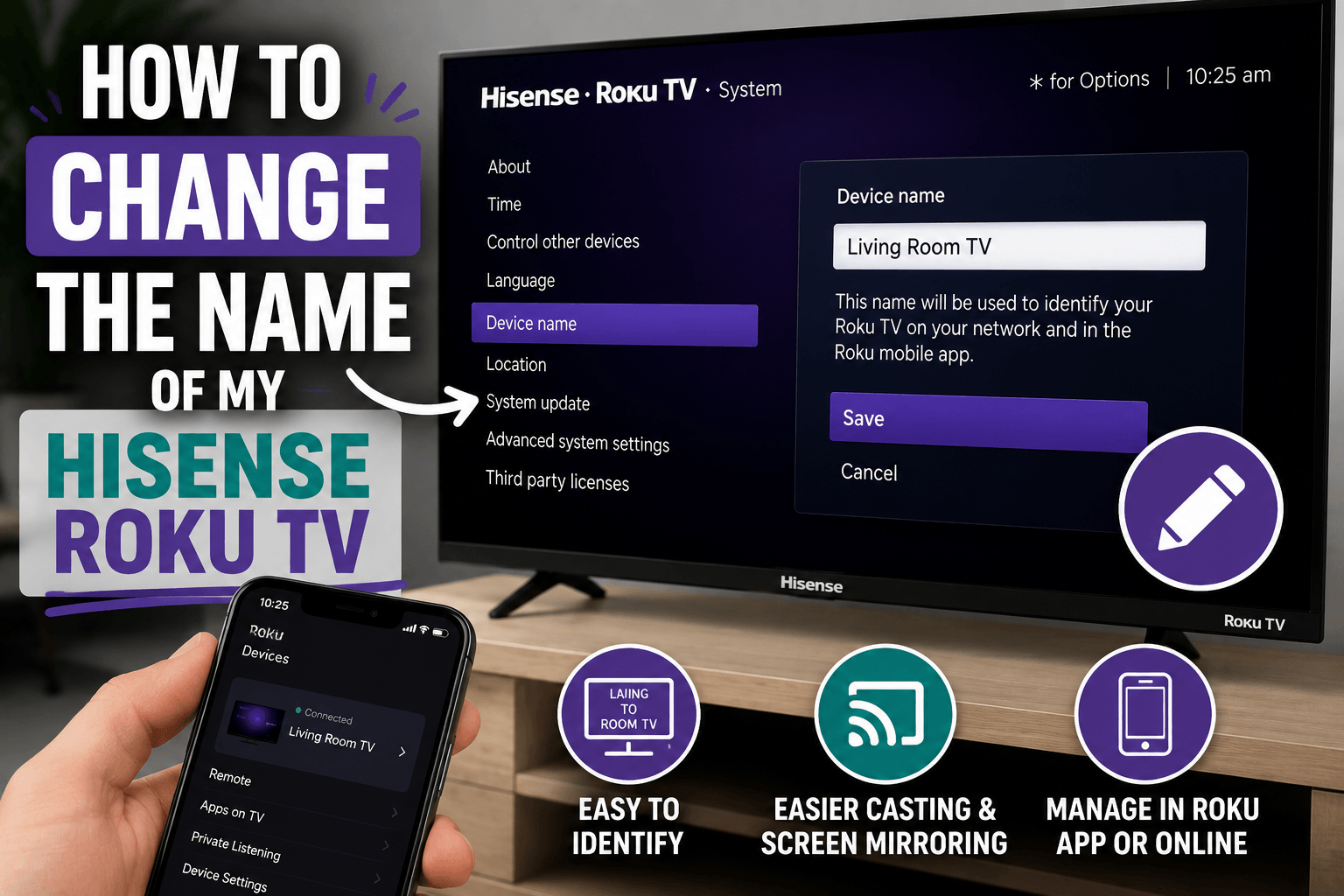
Changing the name of your Hisense Roku TV can make it easier to identify, especially if you have multiple Roku devices connected to the same network. A custom device name also helps when using screen mirroring, casting, voice assistants, or the Roku mobile app.
Fortunately, renaming a Hisense Roku TV only takes a few minutes.
In this guide, you'll learn several ways to change your TV's name and customize how it appears on your network.
Why Change the Name of Your Hisense Roku TV?
Many Roku TVs use a generic default name, such as:
- Living Room TV
- Roku TV
- Hisense Roku TV
While these names work perfectly well, they can become confusing if you have more than one Roku device in your home.
A custom name can help you:
- Identify the correct television in the Roku app.
- Find the right device when casting from a smartphone.
- Organize multiple televisions.
- Improve compatibility with voice assistants.
- Simplify screen mirroring.
Method 1: Rename Your TV Through Your Roku Account
The easiest way to change your Hisense Roku TV's name is through your Roku account.
Follow these steps:
- Open a web browser.
- Sign in to your Roku account.
- Open the My Devices section.
- Locate your Hisense Roku TV.
- Select Edit or Rename.
- Enter a new device name.
- Save your changes.
After a few minutes, the new name should appear on your television and in the Roku mobile app.
Method 2: Rename the TV Through the Roku Mobile App
Depending on your Roku software version, you may be able to rename the device through the mobile application.
Here's how:
- Open the Roku app.
- Select Devices.
- Choose your Hisense Roku TV.
- Open the device settings.
- Select Rename.
- Enter a new name.
- Save your changes.
If the option isn't available, use the Roku website instead.
Best Practices for Naming Your TV
Choosing a clear and descriptive name can save time later.
Examples include:
- Bedroom TV
- Office TV
- Family Room TV
- Upstairs TV
- Guest Room TV
Avoid using similar names for multiple televisions.
For example, naming two devices Living Room TV and Living Room Roku may create unnecessary confusion.
What to Do If the New Name Doesn't Appear
Sometimes, the updated device name doesn't appear immediately.
Try these troubleshooting steps:
Restart the TV
- Press Home.
- Select Settings.
- Open System.
- Select Power.
- Choose System Restart.
Refresh the Roku Mobile App
Close the application completely and open it again.
Verify Your Internet Connection
Make sure the television is connected to Wi-Fi.
To check the connection:
- Press Home.
- Open Settings.
- Select Network.
- Choose Check Connection.
Update Your Roku Software
Outdated software can occasionally prevent account changes from syncing.
To check for updates:
- Open Settings.
- Select System.
- Choose System Update.
- Select Check Now.
Install any available updates.
Frequently Asked Questions
Does changing the TV's name affect my settings?
No. Renaming your television doesn't change your apps, accounts, picture settings, or network configuration.
Will the new name appear when I cast from my phone?
Yes. In most cases, the updated name will appear when using AirPlay, screen mirroring, or the Roku mobile app.
Can I change the name directly on the TV?
Most Hisense Roku TVs don't provide a built-in option for renaming the device through the television's settings menu. The Roku account is usually the preferred method.
Conclusion
Changing the name of your Hisense Roku TV is a quick way to make your device easier to recognize. Whether you're using casting, screen mirroring, or the Roku mobile app, a custom device name can help you manage your entertainment system more efficiently.
If the new name doesn't appear immediately, restart the TV, refresh the Roku app, and check for software updates.