How to Adjust Volume on Hisense Roku TV Without a Remote
Introduction
Losing your remote doesn't mean you lose control of your Hisense Roku TV. If you need to adjust the volume, there are several alternative methods you can use.
Whether your remote is missing, damaged, or simply out of battery power, this guide will show you how to increase or decrease the volume on a Hisense Roku TV without using the original remote.
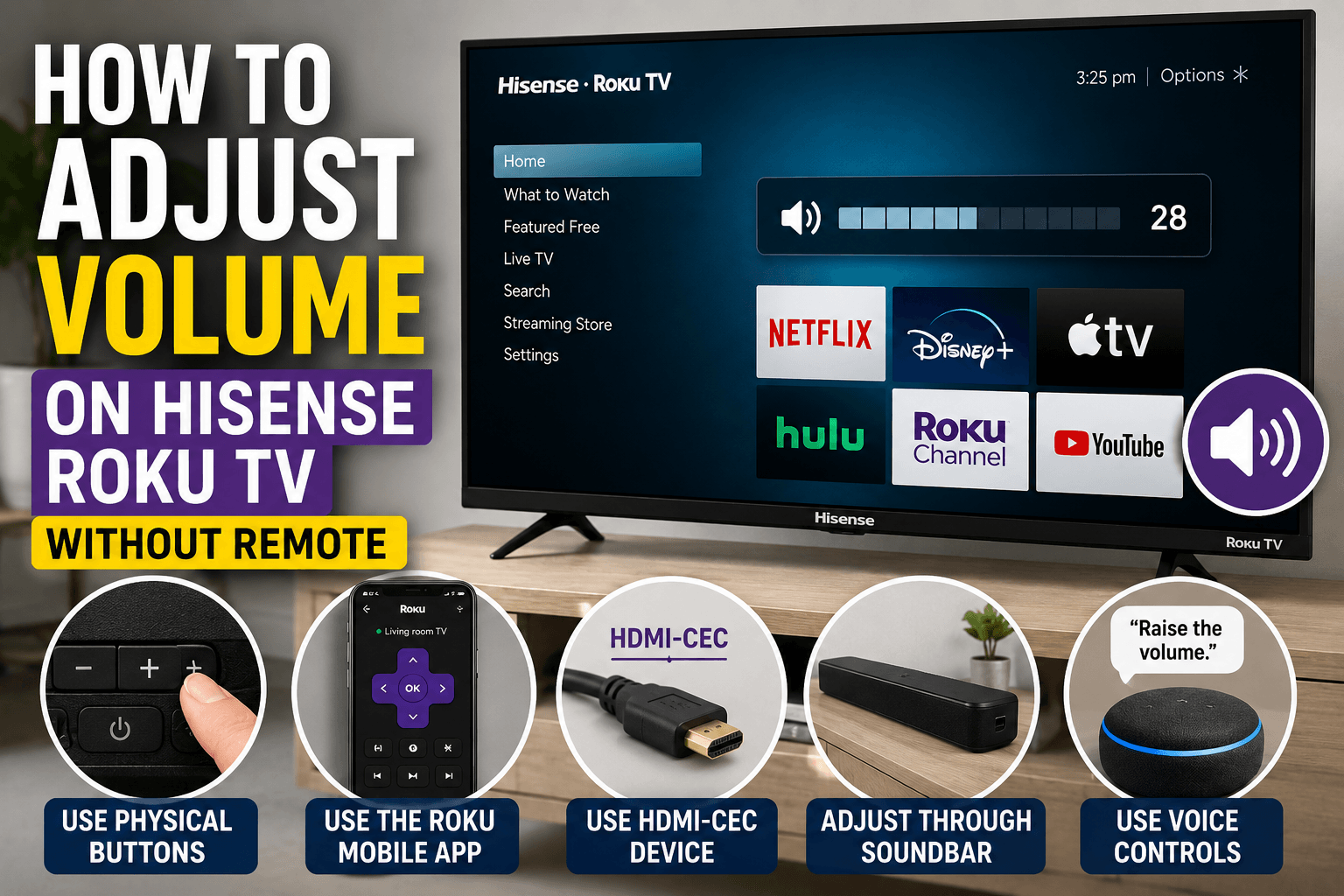
Method 1: Use the Physical Buttons on the TV
Most Hisense Roku TVs include built-in control buttons.
Depending on your TV model, the buttons may be located:
- Under the center of the screen.
- On the lower edge of the TV.
- On the left or right side panel.
- On the back of the television.
Look for buttons labeled:
- Volume Up (+)
- Volume Down (-)
Some models use a single multifunction button instead of separate controls. Pressing or moving the button in different directions allows you to navigate the menu and adjust the volume.
Method 2: Control the TV With the Roku Mobile App
If your TV is connected to the same Wi-Fi network as your smartphone, the Roku mobile app can replace the physical remote.
Android and iPhone setup:
- Install the Roku app.
- Open the application.
- Select Devices.
- Choose your Hisense Roku TV.
- Tap Remote.
- Use the on-screen volume controls.
The app also allows you to navigate menus, launch applications, and enter text.
Method 3: Use HDMI-CEC With a Streaming Device or Console
Many external devices support HDMI-CEC, which allows connected equipment to control your television.
Compatible devices may include:
- Gaming consoles.
- Streaming devices.
- Blu-ray players.
- Sound systems.
If HDMI-CEC is enabled, you may be able to control the TV's volume with another remote.
To verify that the feature is enabled:
- Open Settings.
- Select System.
- Choose Control Other Devices (CEC).
- Enable the available CEC options.
Method 4: Adjust the Volume Through a Connected Soundbar
If your television is connected to a soundbar or external speaker system, you can usually control the audio directly through that device.
Try using:
- The soundbar remote.
- Physical buttons on the speaker.
- A companion smartphone app.
In many cases, the TV's internal speakers are automatically disabled when an external audio device is connected.
Method 5: Use Voice Controls
If your Hisense Roku TV supports voice commands and is linked to a compatible smart assistant, you may be able to change the volume by speaking.
Examples of voice commands include:
- Increase the volume.
- Lower the volume.
- Mute the TV.
The available options depend on your connected devices and system configuration.
What If None of These Methods Work?
If you can't adjust the volume using any of the methods above, consider these solutions:
- Replace the batteries in the remote.
- Purchase a replacement Roku remote.
- Use a universal remote.
- Reset the television.
- Contact Hisense support.
Conclusion
Even without a remote, you still have several ways to control the volume on a Hisense Roku TV. The easiest solutions are using the physical buttons on the TV or installing the Roku mobile app. If those options aren't available, external devices, HDMI-CEC, and voice assistants can provide additional ways to manage your audio settings.