How to Adjust Screen Size on Hisense Roku TV
Introduction
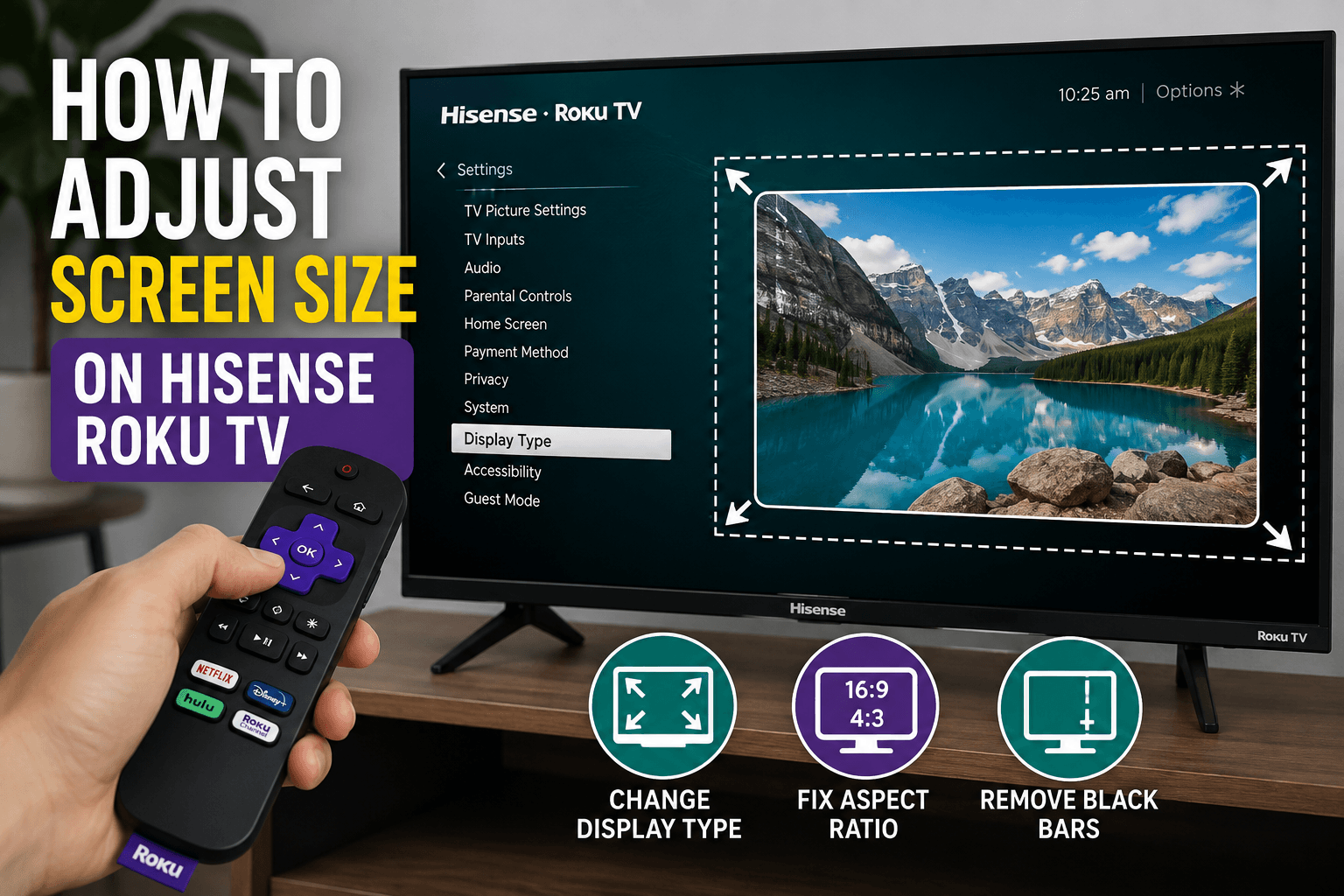
If the picture on your Hisense Roku TV doesn't fit the screen correctly, you're not alone. Many users experience problems such as black bars, an oversized image, cropped edges, or content that appears stretched. Fortunately, adjusting the screen size on a Hisense Roku TV is usually a simple process.
In this guide, you'll learn several methods for fixing screen size issues and restoring the correct display settings.
Why Is the Screen Size Incorrect?
Before changing any settings, it's important to understand what may be causing the problem. Common reasons include:
- Incorrect picture settings.
- The wrong aspect ratio.
- External devices using incompatible resolutions.
- Streaming apps displaying content in a different format.
- Console or cable box settings overriding the TV configuration.
Identifying the source of the problem can help you choose the most effective solution.
Method 1: Restart Your Hisense Roku TV
A simple restart often resolves display-related problems.
Follow these steps:
- Press the Home button on your Roku remote.
- Select Settings.
- Open System.
- Choose Power.
- Select System Restart.
- Confirm the restart.
After the TV turns back on, check whether the picture fits the screen properly.
Method 2: Adjust the Display Type
Hisense Roku TVs automatically detect the best resolution, but the detection process doesn't always work correctly.
To change the display settings:
- Press Home.
- Open Settings.
- Select Display Type.
- Choose a different resolution.
- Wait for the preview to appear.
- Confirm the new setting if the picture looks correct.
You can experiment with several options until you find the one that provides the best image.
Method 3: Check the Picture Size Settings on an External Device
If you're using a cable box, Blu-ray player, gaming console, or streaming device, the issue may not be related to the television itself.
Check the connected device and look for settings such as:
- Aspect Ratio.
- Resolution.
- Screen Size.
- Display Output.
- Overscan.
For example, a gaming console may be set to a resolution that doesn't match your television.
Method 4: Disable Overscan
Some external devices automatically enable overscan, causing parts of the image to disappear beyond the edges of the screen.
If possible, disable overscan in the connected device's settings.
Typical options include:
- Just Scan.
- Fit to Screen.
- Screen Fit.
- Full Pixel.
- 1:1 Pixel Mapping.
The exact name depends on the device you're using.
Method 5: Reset Picture Settings
If previous adjustments haven't solved the problem, restoring the default picture settings may help.
Here's how:
- Press Home.
- Go to Settings.
- Select TV Picture Settings.
- Choose Reset.
- Confirm your selection.
The television will return to its original picture configuration.
Method 6: Update Your Roku Software
An outdated operating system can occasionally create display issues.
To check for updates:
- Press Home.
- Open Settings.
- Select System.
- Choose System Update.
- Select Check Now.
Install any available updates and restart the TV.
What to Do If Nothing Works
If the screen size still looks incorrect after trying every method, consider these additional troubleshooting steps:
- Replace the HDMI cable.
- Connect the device to another HDMI port.
- Test another streaming application.
- Perform a factory reset.
- Contact Hisense customer support.
In some cases, the problem may be caused by the content itself rather than the television.
Conclusion
Adjusting the screen size on a Hisense Roku TV usually takes only a few minutes. Start with a simple restart, then verify your display type and inspect any connected devices. Most screen size problems are caused by incorrect aspect ratio settings or incompatible display configurations.
By following the steps in this guide, you should be able to restore the correct picture size and enjoy a better viewing experience.